What to Do If Your iPhone Is Stuck on the Apple Logo
If your iPhone is stuck on the Apple logo, you can often fix it by performing a force restart or by putting it into recovery mode.

The short answer
If your iPhone is stuck on the Apple logo, first try a force restart. If that doesn't work, you'll likely need to put your device into recovery mode and connect it to a computer. This process allows you to update the iOS without erasing your data.
Key takeaways
- A force restart can often resolve an iPhone stuck on the Apple logo without data loss.
- If a force restart fails, use recovery mode to update or restore your iPhone.
- Choosing 'Update' in recovery mode installs the latest iOS without erasing your data.
- Choosing 'Restore' in recovery mode will erase all data on your iPhone.
- If recovery mode doesn't work, or if a button is broken, your iPhone may need service.
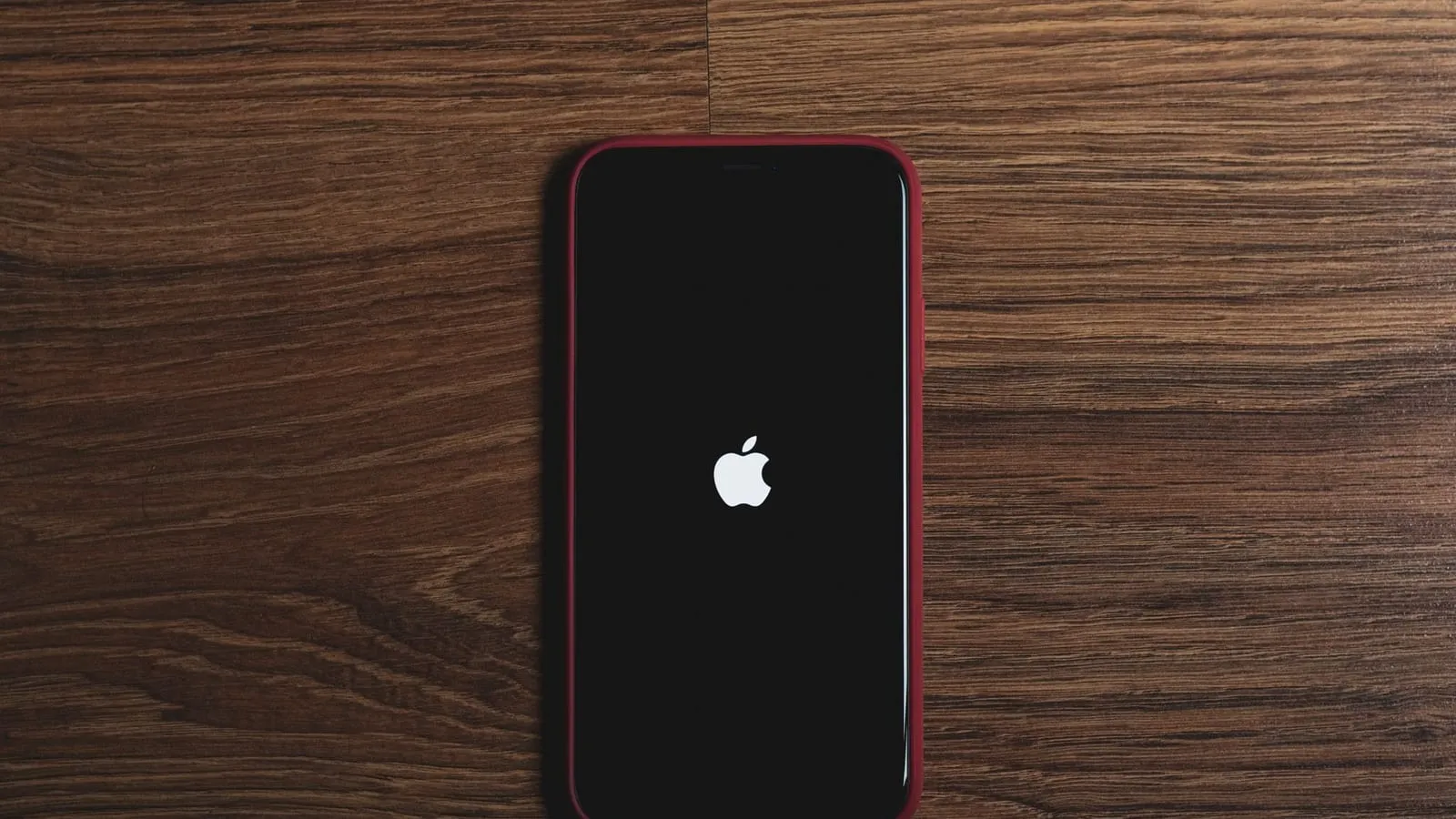
Starting with a force restart is a good first step, as it can fix the issue without data loss.
Try a Force Restart First
If your iPhone is stuck on the Apple logo, start by trying a force restart. This method can often resolve software glitches without deleting any data from your device. It can even fix an iPhone stuck in recovery mode in some cases, without needing a computer.
The steps for a force restart vary slightly depending on your iPhone model.
For iPhone 8, iPhone X, iPhone XR, and all models from iPhone 11 through iPhone 16, follow these steps:
- Quickly press and release the Volume Up button.
- Immediately press and quickly release the Volume Down button.
- Press and hold the Side button. Keep holding it until the Apple logo reappears on your screen.
Once the Apple logo shows up again, you can release the Side button. Your iPhone should then boot up normally. If your phone is generally slow, you might also find our guide on Why Is My Phone So Slow? Common Reasons and How to Fix Them helpful.
When You Might Need Recovery Mode
Recovery mode is a deeper troubleshooting step for when your iPhone has more serious software issues. You might need to use it if your iPhone screen shows the Apple logo for several minutes but there is no progress bar underneath it.
It’s also necessary if your iPhone is stuck on the Apple logo and has a progress bar that hasn’t moved for more than an hour. This is especially true if this happens during a restore or data migration, particularly with iOS 13 or a newer version. In these cases, you should connect your iPhone to a computer and put it into recovery mode.
You may also need recovery mode if your computer doesn’t recognize your iPhone, or if it says your iPhone is already in recovery mode. Another sign is if your iPhone displays the “Connect to computer” screen. Finally, if your device repeatedly starts up to Recovery Assistant but still can’t be fixed, recovery mode is the next step. For example, if you’re trying to update your phone and it keeps looping back to a recovery screen without completing the update, you’d use recovery mode. You can also learn how to free up storage on your iPhone if you suspect storage issues are causing problems.
How to Enter Recovery Mode
If a force restart does not work, you can try putting your iPhone into recovery mode. This process can help resolve more serious software issues. The steps vary depending on your iPhone model.
Here is how to enter recovery mode:
- iPhone 8 and later models (including iPhone SE 2nd generation and later):
- Quickly press and release the Volume Up button.
- Quickly press and release the Volume Down button.
- Press and hold the Side button.
- Continue holding until the recovery mode screen appears.
- iPhone 7 and iPhone 7 Plus:
- Press and hold both the Volume Down button and the Sleep/Wake button.
- Continue holding until the recovery mode screen appears.
- iPhone 6s and earlier models (including iPhone SE 1st generation):
- Press and hold both the Sleep/Wake button and the Home button.
- Continue holding until the recovery mode screen appears.
Once your iPhone is in recovery mode, you will typically see a screen with a computer icon and a cable. You will then need to connect your iPhone to a computer with iTunes or Finder open to proceed with restoring or updating your device’s software. This can sometimes fix problems like a phone that is slow or stuck on the Apple logo. If you’re dealing with video issues, you might also find our guide on How to Speed Up a Video on iPhone useful.
Connect to a Computer and Update or Restore
If your iPhone is stuck on the Apple logo, connecting it to a computer and using recovery mode can help. This process allows you to update or restore your device’s software.
To connect your iPhone, you will need the right software on your computer. If you have a Mac running macOS Catalina 10.15 or later, you’ll use Finder to manage your iPhone in recovery mode. For Macs with macOS Mojave 10.14 or earlier, iTunes is the program you’ll use. If you are using a PC, make sure you have the latest version of the Apple Devices app or iTunes installed.
Once connected and in recovery mode, your computer will give you options. Always try “Update” first. This option attempts to update your iPhone to the newest iOS version without deleting any of your data. If updating does not fix the problem, you may need to choose “Restore.” Be aware that selecting “Restore” will erase all the data on your iPhone.
If the software download takes longer than 15 minutes during a restore, your iPhone might exit the “Connect to computer” screen. Let the download finish completely. Then, repeat the steps to put your iPhone back into recovery mode and start the restore process again. If your phone is showing the “Connect to computer” screen, it might also be related to your phone being in SOS mode.
When to Seek Service
If you have tried updating or restoring your iPhone using recovery mode and it did not work, you might need professional help. This also applies if a physical button on your device is broken, preventing you from performing troubleshooting steps.
For example, if you cannot get your iPhone into recovery mode because the volume down button is unresponsive, you would need service. Similarly, if the update or restore process fails repeatedly after following all instructions, it indicates a deeper issue.
In these situations, an Apple Store or an authorized service provider can diagnose the problem. They have specialized tools and expertise to address hardware malfunctions or software problems that cannot be resolved through standard troubleshooting. Attempting further DIY fixes without the right knowledge could potentially worsen the issue. If you’re experiencing other phone issues, like your phone being in SOS mode, it’s best to consult official support or a professional.
Related reading on Infotero: How to Turn Off Your iPhone and How to Back Up Your Phone Properly.
Frequently asked questions
What should I do if my iPhone is stuck on the Apple logo with a progress bar that hasn't moved?
If your iPhone is stuck on the Apple logo with a progress bar that hasn't moved for over an hour, especially during a restore or migration with iOS 13 or later, connect it to a computer and put it into recovery mode.
Will I lose data if I try to fix my iPhone stuck on the Apple logo?
If you use recovery mode, choosing 'Update' will install the latest iOS without erasing your data. However, choosing 'Restore' will erase all data on your iPhone.
How do I put an iPhone 14 into recovery mode?
For an iPhone 14, quickly press and release the Volume Up button, then quickly press and release the Volume Down button. Then, press and hold the Side button until the recovery mode screen appears.
What if my computer doesn't recognize my iPhone in recovery mode?
If your computer doesn't recognize your device or indicates it's already in recovery mode, you might need to try the recovery mode steps again or ensure you have the latest Apple Devices app or iTunes installed.
What if the software download takes too long during a recovery mode update?
If the software download takes more than 15 minutes, your device might exit the 'Connect to computer' screen. Let the download finish, then repeat the steps to restore or update.
Sources
Facts in this article were checked against these sources. Spotted an error? Report a correction.
- 1If your iPhone freezes on the Apple logo - Apple Supportsupport.apple.com
- 2
- 3
- 4Make iPhone Apple Logo Glow Like MacBook - Business Insiderbusinessinsider.com
- 5Official Apple Support Communitydiscussions.apple.com
- 6Official Apple Support Communitydiscussions.apple.com