Why Is My Router or Modem Blinking Orange?
An orange light on your router or modem usually means it has no internet connection. Learn what blinking and solid orange mean and how to fix it.

The short answer
A blinking orange light on your router typically means there's a problem with its internet connection. This could be due to a service outage, a hardware issue, or the router actively trying to establish a connection. The exact meaning can vary by manufacturer and internet service provider.
Key takeaways
- An orange light usually means the router or modem has power but no working internet connection.
- First find out which box is orange, because a modem light and a router light point to different problems.
- Restarting the modem first and the router second fixes most orange lights.
- Loose cables, an ISP outage, a firmware update or overheating can also cause it.
- Light colors differ by brand, so check your model's manual if the light stays orange while the internet works.
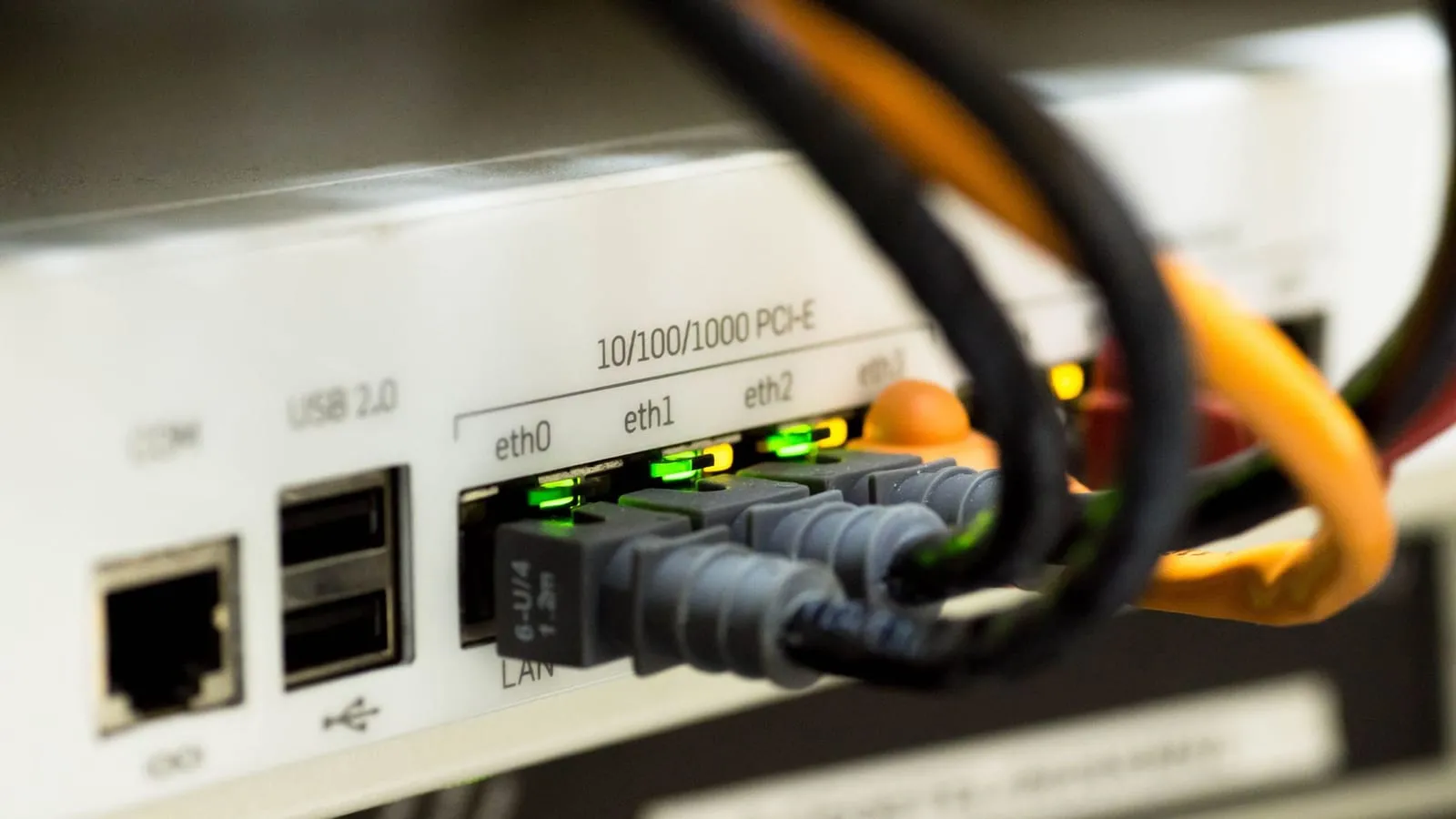
An orange light on your router or modem, whether it is blinking or solid, generally means the device cannot get a working internet connection. It can point to a partial connection, a hardware error, or a lost signal. In most homes, the fix is simple: restart the equipment in the right order or reconnect a loose cable.
Quick Fix Checklist
Try these steps in order. Most orange lights go away after step 2 or 3.
- Check which box is orange. Note whether the light is on your modem, your router, or an all-in-one gateway from your provider.
- Restart in the right order. Unplug the modem and router, wait about 60 seconds, plug in the modem first, wait until its lights settle, then plug in the router.
- Check the cables. Push in the cable from the wall to the modem and the cable from the modem to the router’s WAN or Internet port.
- Look for an outage. Check your provider’s app or website for problems in your area.
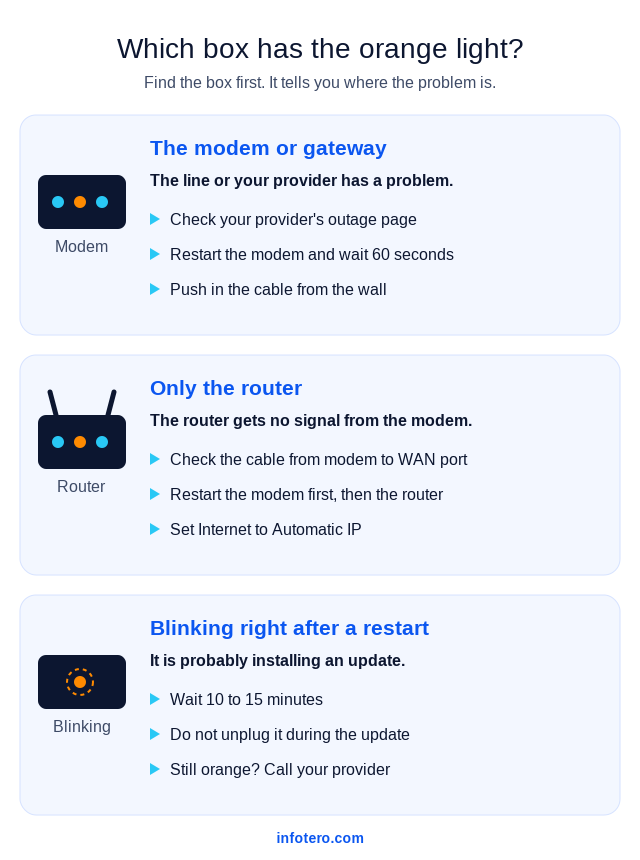
- Wait out updates. If the light started blinking right after a restart or overnight, the device may be installing an update. Give it 10 to 15 minutes before unplugging it again.
- Contact your provider if the light stays orange after all of the above.
Which Box Is Orange: Modem, Router or Gateway?
Many homes have two boxes. The modem connects to your provider through the cable, phone or fiber line on the wall. The router creates your Wi-Fi network and plugs into the modem. Some providers give you a single gateway that does both jobs.
This matters because an orange light on the modem or gateway usually points to a problem with the line coming into your home or with your provider. An orange light only on the router often means it is not getting a connection from the modem, so check the cable between the two boxes first.
The most useful light to watch is the one labeled Internet or Online. If it is not solid, the modem is not getting an active connection from your provider, and you will not have internet until it turns solid.
Blinking Orange vs Solid Orange
A blinking orange light usually means the device is actively trying to do something: connect to your provider, restart, or install a firmware update. A solid orange light more often means it has stopped trying and has no working connection, or, on some models, that it is connected at a slower speed. Red usually signals a more serious problem than orange, such as no connection at all on the WAN port.
Because every brand uses its own color rules, check the manual for your exact model if the light stays orange while the internet works.
Common Causes of an Orange Light
- An outage at your provider. If your provider has a problem in your area, the modem cannot connect no matter what you do at home.
- Loose or damaged cables. A cable that is half plugged in or worn out, especially the one in the WAN port, is a frequent cause.
- A firmware update. Routers often update themselves and briefly lose their connection while doing it.
- Power problems. A damaged power cord, a loose plug or an overloaded surge protector can make the router misbehave.
- Overheating. A router packed into a closed cabinet or covered by other things can keep dropping its connection.
- No IP address from the modem. If the router’s Internet settings are wrong, it cannot get online even when the modem is working.
How to Fix It Step by Step
- Power cycle both devices. This lets the hardware fully reset and clears most temporary glitches. Unplug the modem and router, wait about 60 seconds, plug in the modem, wait until its lights are stable, then plug in the router.
- Reseat every cable. Unplug and firmly plug back in the cable from the wall to the modem and the cable from the modem to the router’s WAN port. Swap the Ethernet cable if you have a spare.
- Plug straight into the wall. Skip the surge protector or extension cord for a moment to rule out power issues.
- Give it air. Move the router to an open spot where it can cool down.
- Check the router’s Internet settings. Log in to the router’s admin page and make sure the WAN or Internet connection type is set to “Automatic IP” or “Dynamic IP” (unless your provider told you otherwise).
- Factory reset as a last resort. The reset button is usually a small pinhole on the back that you press with a paperclip. This erases your Wi-Fi name, password and settings, so note them down first.
- Call your provider. If the light is still orange, they can test the line and tell you whether the problem is their service, the modem or the router.
What Orange Means on Popular Brands
The meaning of an orange, amber or red light differs by manufacturer and provider. For example, on Xfinity xFi gateways, a flashing orange light means the gateway is offline and cannot connect, often during a service interruption.
On NETGEAR routers, amber does not always mean a problem:
| Light | Color and State | Meaning |
|---|---|---|
| Power | Solid amber | Router is powering on |
| Power | Blinking amber | Firmware is upgrading or the Reset button was pressed |
| Internet | Solid amber | Ethernet cable connection to the modem detected |
| Ethernet | Amber | 100 Mbps or 10 Mbps Ethernet connection |
If you use another brand, search for “[your router model] LED lights” on the manufacturer’s support site.
Related reading on Infotero: Why Is My Router Not Connecting to the Internet? and How to Check Your Internet Speed and Understand the Results.
Frequently asked questions
What does an orange light on my modem mean?
On most modems and gateways, an orange or amber light means the box is powered on but has not established a connection with your internet provider. It often appears after an outage, a loose coaxial or fiber cable, or while the modem is restarting.
Can a blinking orange light mean my router is updating?
Yes, a blinking orange light can mean the router is installing a firmware update, which briefly cuts its connection. Give it 10 to 15 minutes before unplugging it.
How long should I unplug my router and modem?
Unplug both for about 60 seconds. Plug the modem back in first, wait until its lights settle, then power on the router.
Why is my router showing an orange light but my internet still works?
On some routers, solid orange or amber simply means a slower connection type or that the device is starting up. If websites load normally, check the manual for your exact model before changing anything.
What does an orange flashing light mean on an Xfinity gateway?
On Xfinity xFi gateways, a flashing orange light means the gateway cannot connect to the internet, often during a service interruption.
What should I do if restarting doesn't fix the orange light?
Check for loose or damaged cables, make sure the router is not overheating, and look for an outage in your area. If the light stays orange, contact your internet provider.
Sources
Facts in this article were checked against these sources. Spotted an error? Report a correction.
- 1Modem & Router Lights Explained | BroadbandSearchbroadbandsearch.net
- 2Orange blinking light | Xfinity Community Forumforums.xfinity.com
- 3
- 4
- 5
- 6