How to Check Your Internet Speed and Understand the Results
Learn how to accurately check your internet speed and interpret the results.

The short answer
You can check your internet speed using reliable online tools like Speedtest.net or Google's Internet speed test, which measure download speed, upload speed, and ping to show your connection's performance.
Key takeaways
- Use reliable speed test websites and prepare your connection for accurate results.
- Understand download speed, upload speed, and ping to interpret your test results.
- Speeds are measured in megabits per second (Mbps); higher numbers mean faster connections.
- Troubleshoot slow speeds by restarting your router, checking your plan, or contacting your provider.
- Consistent slow speeds might mean you need a new internet plan or wireless provider.
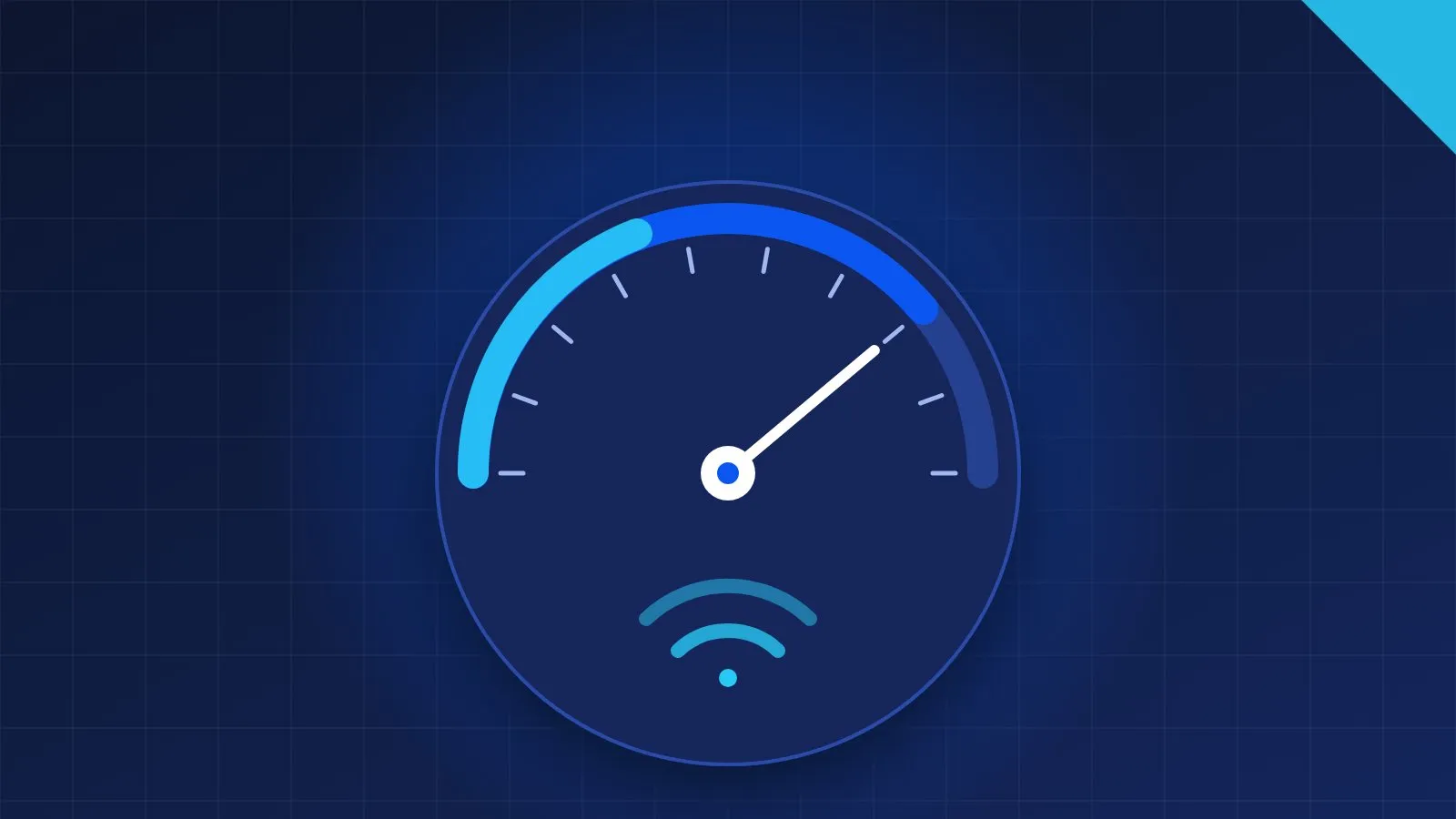
Checking your internet speed helps you understand if you are getting the performance you pay for and if your connection meets your needs for activities like streaming or gaming. You can check internet speed using various online tools that measure how quickly data travels to and from your device. These tests provide key metrics like download and upload speeds, which are important for diagnosing connection issues. Understanding these results can help you troubleshoot problems or decide if you need to contact your internet provider.
How to Prepare for an Accurate Speed Test
Preparing your setup before a speed test helps you get the most accurate results. Start by closing any programs or devices that use your internet connection. This includes streaming services, online games, or any downloads running in the background. These activities use up bandwidth, which can skew your speed test results.
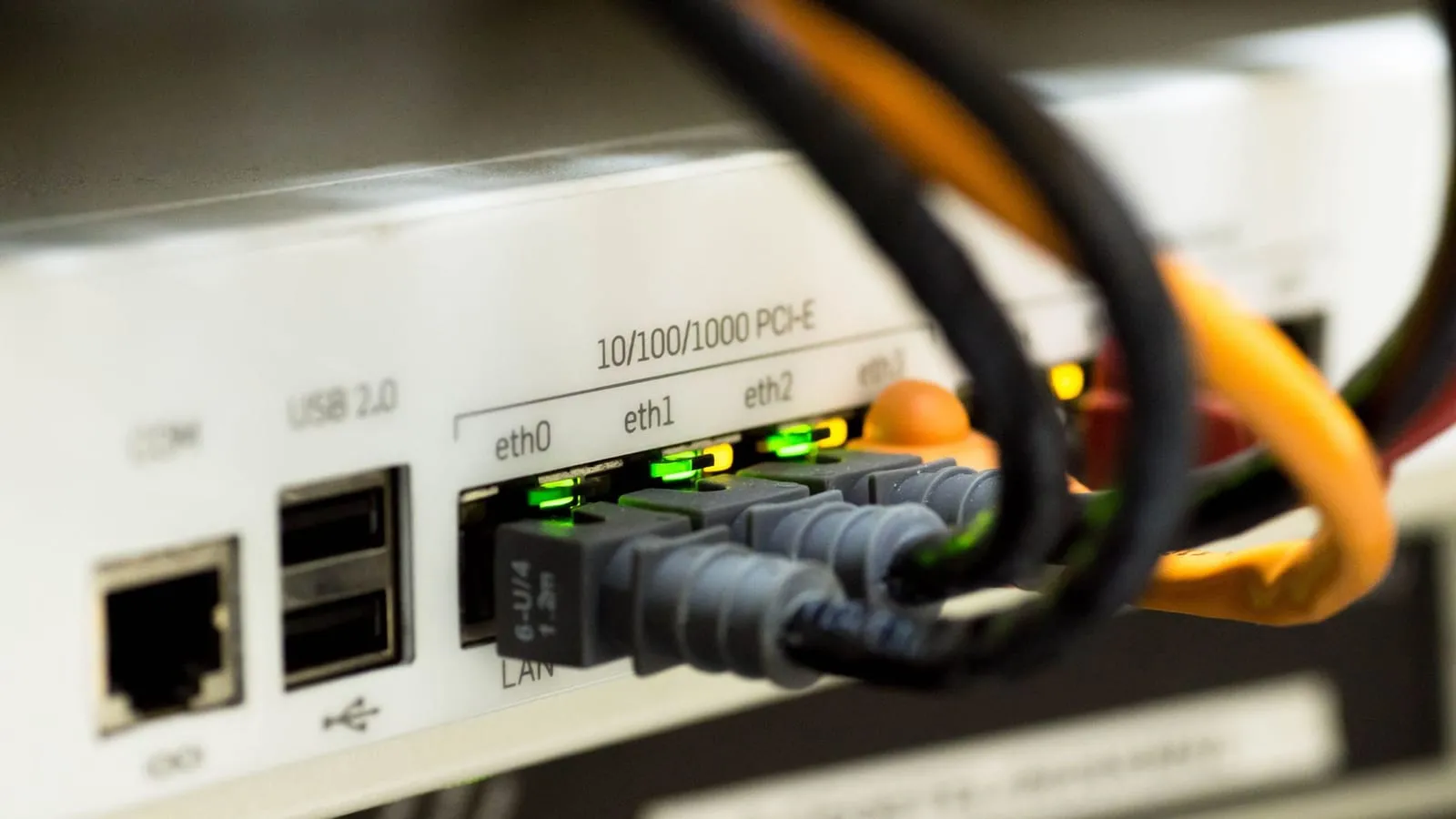
For the most precise reading, connect your device directly to your internet router with an Ethernet cable. Wi-Fi signals can be less reliable because things like walls, other electronics, or even furniture can interfere with the signal.
If you cannot use a wired connection, try to place your device as close to your router as possible. This helps minimize potential interference and provides a stronger Wi-Fi signal for the test.
Running an Internet Speed Test
Several trustworthy online tools can help you check your internet speed. However, not all speed-testing websites provide accurate results. Some might have biases or a limited number of testing servers.
Follow these steps to run an internet speed test:
- Choose a reliable speed test. Good options include Speedtest.net, Free Speedtest by Gcore, and Google’s internet speed test.
- Open your chosen speed test website in a web browser. If you want to test your mobile internet, you can download the Speedtest app for Android or iPhone.
- Start the test. The website or app will usually have a clear button, often labeled “Go” or “Start.”
- Wait for the test to complete. It typically takes less than a minute. The test measures your download and upload speeds.
- Run multiple tests. Internet speeds can change throughout the day. Testing at different times helps you find your average connection speed. For example, your speed might be slower during peak evening hours when more people are online.
- Consider your device and location. Wireless data speeds can vary a lot based on where you are and how strong your signal is. If you are testing on a laptop, try moving to different spots in your home.
Understanding Your Speed Test Results
Internet speed tests provide several key metrics. Each metric shows a different part of your connection’s performance.
The test measures your download speed, upload speed, and ping (latency). Download speed is how fast data travels from the internet to your device. This is important for things like streaming videos, downloading files, and browsing websites. Upload speed is the opposite. It measures how quickly data goes from your device to the internet. This matters when you are video conferencing, playing online games, or uploading documents.
Ping, also called latency, measures the delay between your device and the internet server. A high ping can cause problems like lag in online games.
Most speed test results use megabits per second (Mbps) as their unit of measurement. A higher number in Mbps means a faster internet connection.
Another metric is jitter. Jitter shows how consistent your connection’s response time is. If your jitter is high, you might experience stuttering video, robotic-sounding audio, or inconsistent streaming. For the best performance, your jitter result should be as close to 0 milliseconds as possible.
What Do Different Speeds Mean for Your Usage?
The internet speed you need depends on what you do online. Basic tasks like checking email or browsing websites require less speed than streaming movies in high definition or playing online games. Your connection speed is also shared by all devices in your home. So, if multiple people are using the internet at the same time, you may need a faster connection.
If streaming services like Netflix or Hulu pause or do not display in high definition, your internet connection might be too slow. A 50 Mbps download speed allows a family of four to use the internet effectively. This speed can download a 2 GB movie in just over five minutes. A 1 Gbps connection downloads the same movie in 16 seconds.
Here is a guide to common internet speeds and what they support:
| Activity | Recommended Download Speed | Notes |
|---|---|---|
| The internet speed you need depends on your online activities. For simple browsing or email, you need less speed. If you stream high-definition videos, play online games, or have multiple devices connected, you will need more bandwidth. |
A download speed of 25 Mbps or higher is generally enough for web browsing, email, and music streaming. For high-definition video streaming or online gaming, a download speed of 50 Mbps or higher may be needed. If you stream 4K content, such as from Netflix or Hulu, you will need a fast home internet connection.
Upload speeds are also important, especially for video calls or creating content. Video calls typically require an upload speed of 3 to 5 Mbps. For smooth online gaming and content creation, an upload speed of 10 Mbps or more is ideal.
Ping, or latency, also affects your online experience. A ping under 20 milliseconds is excellent for gaming. For most other activities, a ping under 100 milliseconds is acceptable. A ping over 100 milliseconds can cause noticeable lag.
Remember that your internet connection is shared among all connected devices in your home, which divides the available speed.
| Activity | Recommended Download Speed | Recommended Upload Speed | Acceptable Ping |
|---|---|---|---|
| Web browsing, email, music streaming | 25 Mbps or higher | Not specified | Under 100ms |
| HD video streaming, online gaming | 50 Mbps or higher | 10+ Mbps for smooth gaming | Under 20ms for gaming |
| Video calls | Not specified | 3-5 Mbps | Under 100ms |
Troubleshooting Slow Internet Speeds
If your internet speed test results are lower than you expect, you can take a few steps to investigate the problem. Sometimes, simply restarting your router can improve your internet speed.
Check your internet plan to make sure it provides enough download speed for your household’s needs. For example, if you have many devices streaming video simultaneously, a basic plan might not be sufficient.
The location of your router also matters. Place it in a central spot in your home and make sure there are no large objects blocking its signal. Older routers can also cause slower speeds, so upgrading to a newer model might help. Other electronics, like microwaves or cordless phones, can interfere with Wi-Fi signals. Try moving these devices away from your router or using a wired connection for your computer.
If you’ve tried these steps and your speeds are still consistently slow, contact your internet service provider (ISP) for help. They might be able to resync your cable modem to improve performance. If your speed is much lower than what you pay for, you can ask your provider for a discount or a fix. Faster internet connections usually cost more. If the issues continue, you might consider switching to a new wireless provider.
Related reading on Infotero: Why Is My Router Not Connecting to the Internet? and Why Is My Router or Modem Blinking Orange?.
Frequently asked questions
What internet speed do I need for streaming?
For high-definition streaming, a download speed of 50 Mbps or higher is generally recommended. Netflix suggests a minimum of 5 Mbps for HD streaming per device.
Why are my internet speeds slow?
Slow internet speeds can be caused by various factors, including an outdated router, interference from other devices, or your internet plan not meeting your usage needs. Your connection is also shared among all devices in your home.
Can I improve my internet speed at home?
Yes, you can try restarting your router, ensuring it's placed centrally without obstacles, or connecting your device directly with an Ethernet cable for more accurate tests. If issues persist, contact your internet service provider.
What do download and upload speeds mean?
Download speed is how fast data comes to your device, important for streaming and browsing. Upload speed is how fast data goes from your device to the internet, essential for video calls and online gaming.
Sources
Facts in this article were checked against these sources. Spotted an error? Report a correction.
- 1
- 2How to test your internet speed | Business Insider Africaafrica.businessinsider.com
- 3
- 4FCC Mobile Speed Test App - App Storeapps.apple.com
- 5
- 6Internet Speed Test Results Explained | TestMySpeed.comtestmyspeed.com