Why Is My Router Not Connecting to the Internet?
Your router might not be connecting to the internet due to issues with the physical connection, Wi-Fi signal problems, or network settings.

The short answer
Your router might not be connecting to the internet because of problems in the connection chain from your device to your Internet Service Provider (ISP). This could involve loose cables, a weak Wi-Fi signal, or issues with your modem or router. Sometimes, the problem lies with your device's settings or even an ISP outage.
Key takeaways
- Check physical connections first, ensuring all cables are secure and undamaged.
- Power cycle your modem and router to reset their connection.
- A weak Wi-Fi signal or interference can prevent internet access.
- Confirm if the issue is with a single device or all devices to narrow down the cause.
- Contact your ISP if all troubleshooting steps fail, as there might be an outage or service problem.
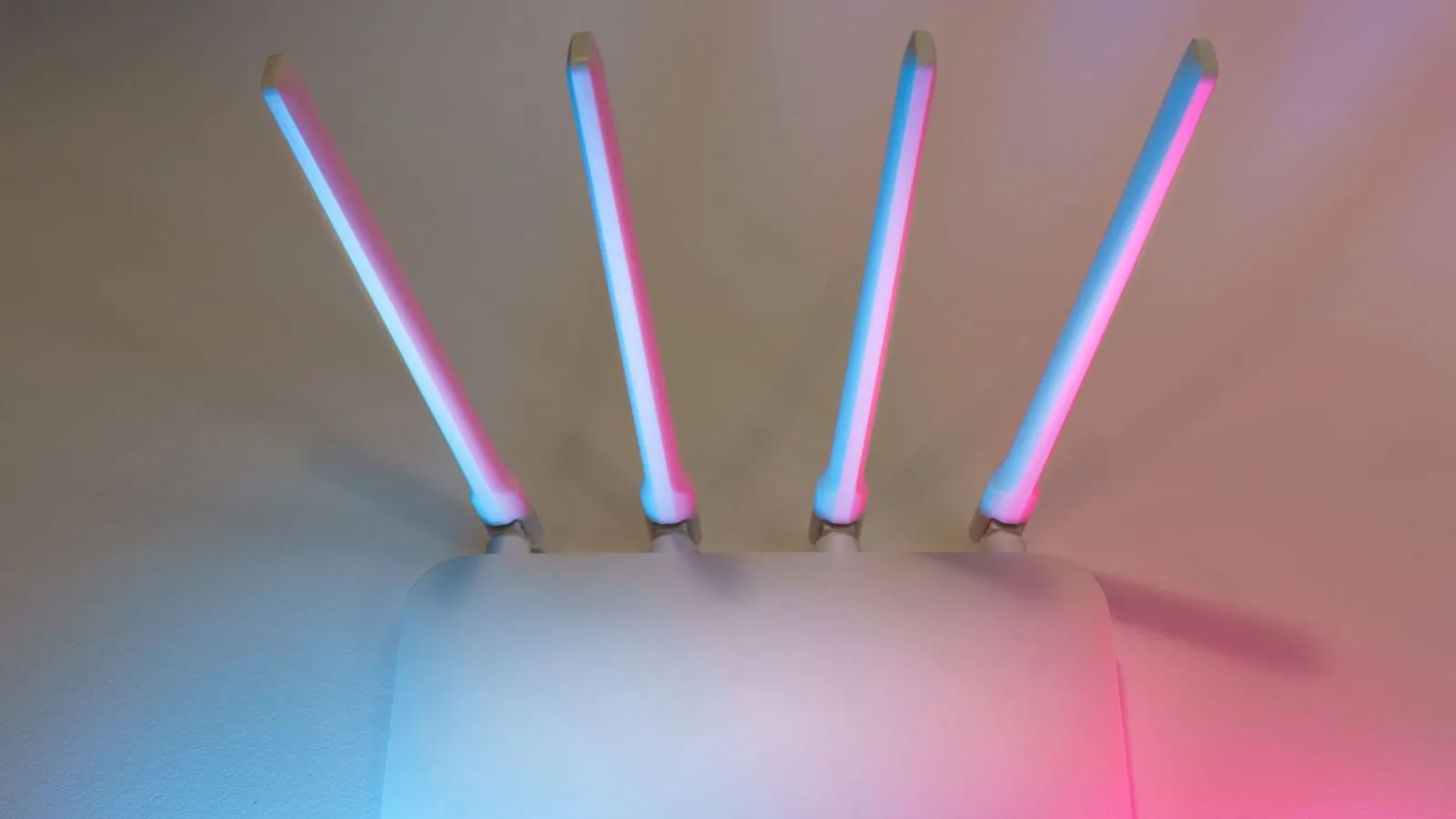
If your router is not connecting to the internet, it can be frustrating. Issues can range from simple physical disconnections to more complex network settings or even problems with your ISP’s service.
Check Physical Connections and Power
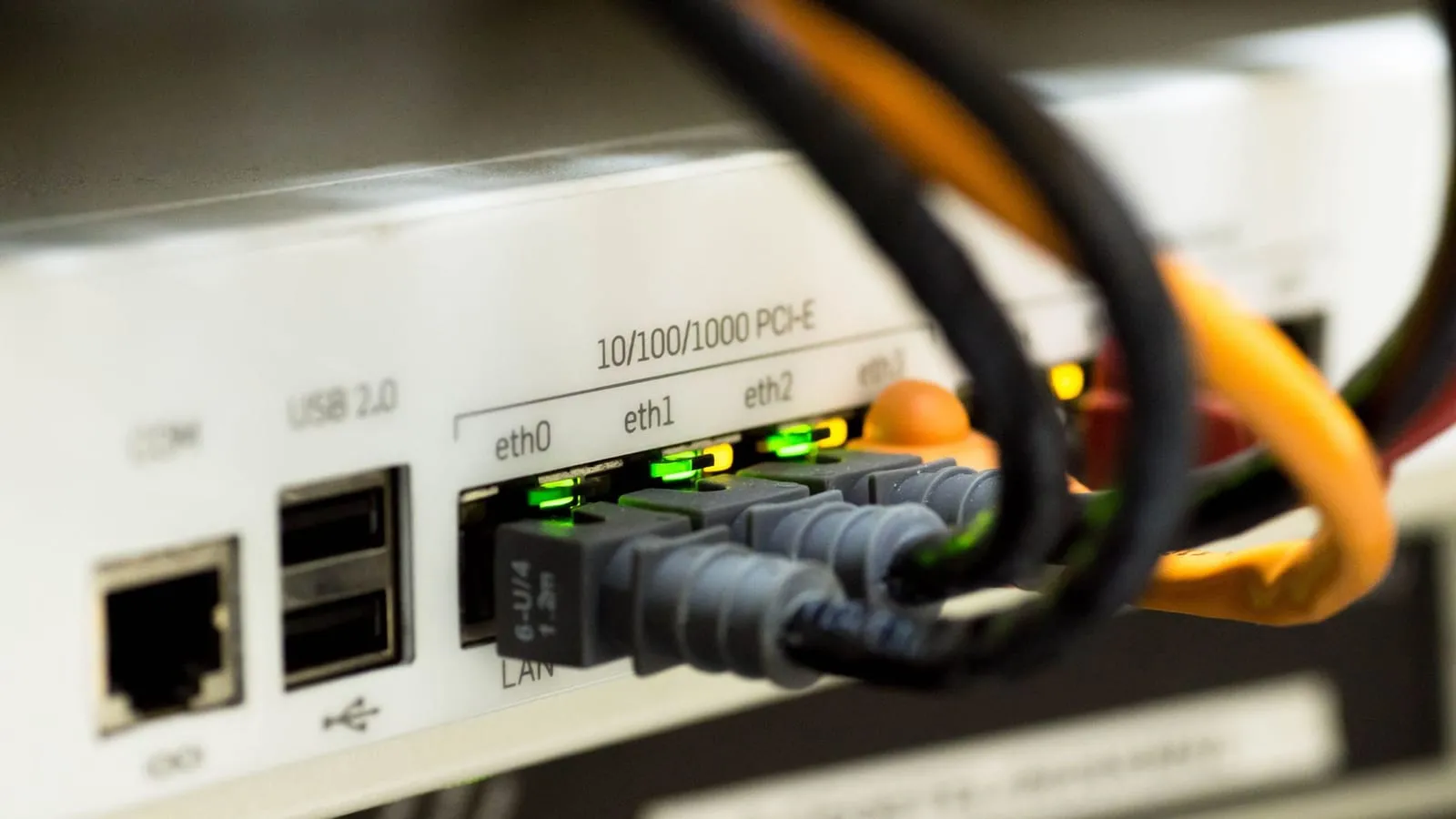
Start by checking the most common physical issues. Loose cables, damaged power bricks, or old hardware can stop your internet from working or make it unreliable. Sometimes, a cable gets pulled out by accident.
Here’s how to check your connections and power:
- Inspect network cables. Make sure the network cable is firmly plugged into both your device (like a computer) and your router or modem. If you have Wi-Fi, this step applies to the cable connecting your modem to your router. Physical damage to these cables can take your network offline.
- Try different ports and cables. If your device is connected by a cable, switch it to another port on your router or modem to see if the original port is faulty. You can also try a different network cable to rule out a damaged cable.
- Check indicator lights. Look at the lights on your modem and router. They should be steady green or white. If you see blinking red or amber lights, this often means there’s a problem or a lost connection with your internet provider. You might find our article Why Is My Router Blinking Orange? helpful.
- Power cycle your equipment. Unplug your modem and router from their power outlets for 30 seconds. Then, plug them back in. This restart can fix many connection problems.
- Wait for restart. After plugging them back in, wait for your modem and router to fully start up. You’ll know they’re ready when their indicator lights are solid, not blinking.
Address Wi-Fi Signal and Interference
Your device might connect to your Wi-Fi network but still not reach the internet. It means your device is linked to your local network, but that network cannot connect to the wider internet. In this situation, the problem is likely between your router and the internet, not between your device and the router.
A weak Wi-Fi signal can also cause problems. It can prevent your device from communicating properly with the router. This leads to dropped data or interrupted internet access. Moving closer to your router can strengthen a weak signal.
Several things can interfere with your Wi-Fi signal. Thick walls can disrupt the signal, as can other networks operating on the same frequency. Large metal objects, such as filing cabinets, can block Wi-Fi signals as well. If you can access the internet with a wired connection but not wirelessly, your wireless network may not be sending out a signal.
Verify Device and Network Settings
You need to make sure your device is set up correctly to connect to your Wi-Fi and the internet. First, check that your device is connected to the right Wi-Fi network. If your device asks for it, you might need to re-enter your Wi-Fi password.
To find out if the problem is with your device or the network, see if other devices can connect to the Wi-Fi. You can also try to reach your router’s admin panel by typing an address like 192.168.1.1 or 192.168.0.1 into your web browser. This confirms if your device is communicating with the router.
If your device’s IP address is blank or begins with 169.254, it means your device did not get a valid address from the router, so there is no working connection.
Sometimes, the issue is with the Domain Name System (DNS). If there’s a problem with the DNS server, you won’t be able to access the internet, even if your connection seems fine. This can happen if DNS records are not set up correctly, perhaps after a computer update or if a wrong IP address was entered.
Resetting your device’s network settings can often fix connection problems.
Consider Software and Hardware Issues
Software and hardware problems can also stop your router from connecting to the internet. Sometimes, network connectivity issues mean you can’t get online, use shared files, or access online services.
Your router’s software might need an update. Updating your router’s firmware can help with intermittent connections. You might also need to update network drivers or other software on your devices to solve connectivity issues. If a network port has been turned off because it wasn’t used, you will need to turn it back on.
Older hardware can cause issues too. Routers that are more than five or six years old might struggle to keep a stable internet connection.
Malicious programs can also interfere with your connection. Spyware, for instance, can inject its own proxy settings, which affects how your network connects to the internet. Other malware, like viruses, can block or redirect your internet traffic. Third-party software such as firewalls or anti-virus programs can also block outgoing network traffic if their security level is set too high.
If you use a Virtual Private Network (VPN), it could be slowing things down. VPNs encrypt your data, which can reduce network speed and cause delays when loading web pages or videos. Try changing VPN servers or restarting your device to fix these issues.
When to Contact Your Internet Service Provider
You should contact your internet service provider (ISP) if you have tried basic troubleshooting and still cannot get online. This is especially true if none of your devices can connect to the internet.
When your entire household’s internet is down, it often points to a problem outside your home. Your ISP can check for outages in your area. For example, if your phone, laptop, and smart TV all show no internet connection, the issue is likely with the service coming into your home, not with your individual devices or router.
An ISP can also determine if there is a problem with your modem or the line connecting your home to their network. They have tools to diagnose these issues remotely. They can also tell you if scheduled maintenance is affecting your service.
Before calling, make sure you have restarted your router and modem. This simple step can resolve many temporary connection glitches. If that does not work, and all your devices are still offline, then it is time to contact your ISP for assistance. You can also learn how to check your internet speed to help diagnose issues.
Frequently asked questions
What does 'connected without internet' mean?
If your device shows 'connected without internet,' it means it is successfully linked to your local Wi-Fi network, but that network cannot access the wider internet. The break in the connection is likely between your router and the internet, rather than between your device and the router.
How can I improve a weak Wi-Fi signal?
To improve a weak Wi-Fi signal, try moving closer to your router. Also, be aware that thick walls, large metal objects like filing cabinets, and interference from other devices such as microwaves or cordless phones can disrupt Wi-Fi signals.
When should I contact my Internet Service Provider (ISP)?
You should contact your ISP if you've tried basic troubleshooting steps like power cycling your modem and router, and still all your devices cannot connect to the internet. This could indicate an outage or a problem with their service.
Can old equipment cause connection issues?
Yes, aging hardware can cause spotty or no internet access. Routers that are older than five or six years, for example, may struggle to maintain consistent connections.
Sources
Facts in this article were checked against these sources. Spotted an error? Report a correction.
- 1How to Troubleshoot Network Connectivity Issuestdx.vanderbilt.edu
- 2Article - How To Diagnose Internet Co...service.uoregon.edu
- 3
- 4
- 5
- 6