Why Is Only One of My AirPods Working?
If only one of your AirPods is working, it's often due to simple connectivity issues, low battery, or debris.

The short answer
If only one of your AirPods is working, the problem is usually a simple connectivity issue or a low battery in one earbud or the charging case. Other common causes include debris blocking the speaker or microphone, or an AirPod not being properly set up after replacement. You can often fix this by cleaning, charging, or resetting your AirPods.
Key takeaways
- Check the charge status of both AirPods and the charging case first.
- Cleaning debris from the speaker or microphone mesh can resolve sound issues.
- Many problems can be fixed by placing AirPods in the case for 30 seconds or performing a full reset.
- Ensure your iPhone's Bluetooth is on and its software is up to date.
- If you've replaced an AirPod, it needs to be set up to work correctly.
If only one of your AirPods is working, it’s a common problem often caused by simple connectivity issues, low battery, or debris. Before you try more complex solutions, check the charge of both AirPods and their case. Many issues can be resolved by cleaning the AirPods or by resetting them. This guide will walk you through the steps to troubleshoot and fix a single malfunctioning AirPod.
Check the Basics First
If only one of your AirPods is working, it’s often due to simple issues you can check quickly. Start by looking at your battery levels and device connections.
A common reason for a single AirPod not playing sound is that its battery, or the charging case’s battery, is low. To check this, open your charging case near your iPhone or iPad. Your device will then show you the charge status for each AirPod and the case. Make sure the charging case is fully charged, especially if one AirPod has no sound at all.
Another frequent cause is a connectivity problem. First, confirm that Bluetooth is on for your iPhone. You can do this by opening the Control Center; the Bluetooth icon should be blue. Also, check that your iPhone’s software is current. Go to Settings > General > Software Update on your iPhone to confirm this.
If you’ve recently replaced one of your AirPods, you’ll need to set up the new AirPod before it will work correctly.
Troubleshoot Your AirPods
If you’ve checked the basics and an AirPod still isn’t working, try these steps to fix common problems. This can help with issues like low charge, debris blocking sound, or a software glitch.
- Charge both AirPods. Put both AirPods into their charging case and let them charge for 30 seconds. This can often resolve issues if one AirPod simply needs more power.
- Test the malfunctioning AirPod. Take the AirPod that isn’t working and put it in your ear. Keep the other AirPod in the charging case with the lid closed. Then, play some audio. This helps you see if the AirPod can produce sound on its own.
- Reset and recheck. If the malfunctioning AirPod plays sound during the test, put both AirPods back into the charging case for 30 seconds. After that, open the case near your iPhone or iPad to see if both AirPods now work correctly.
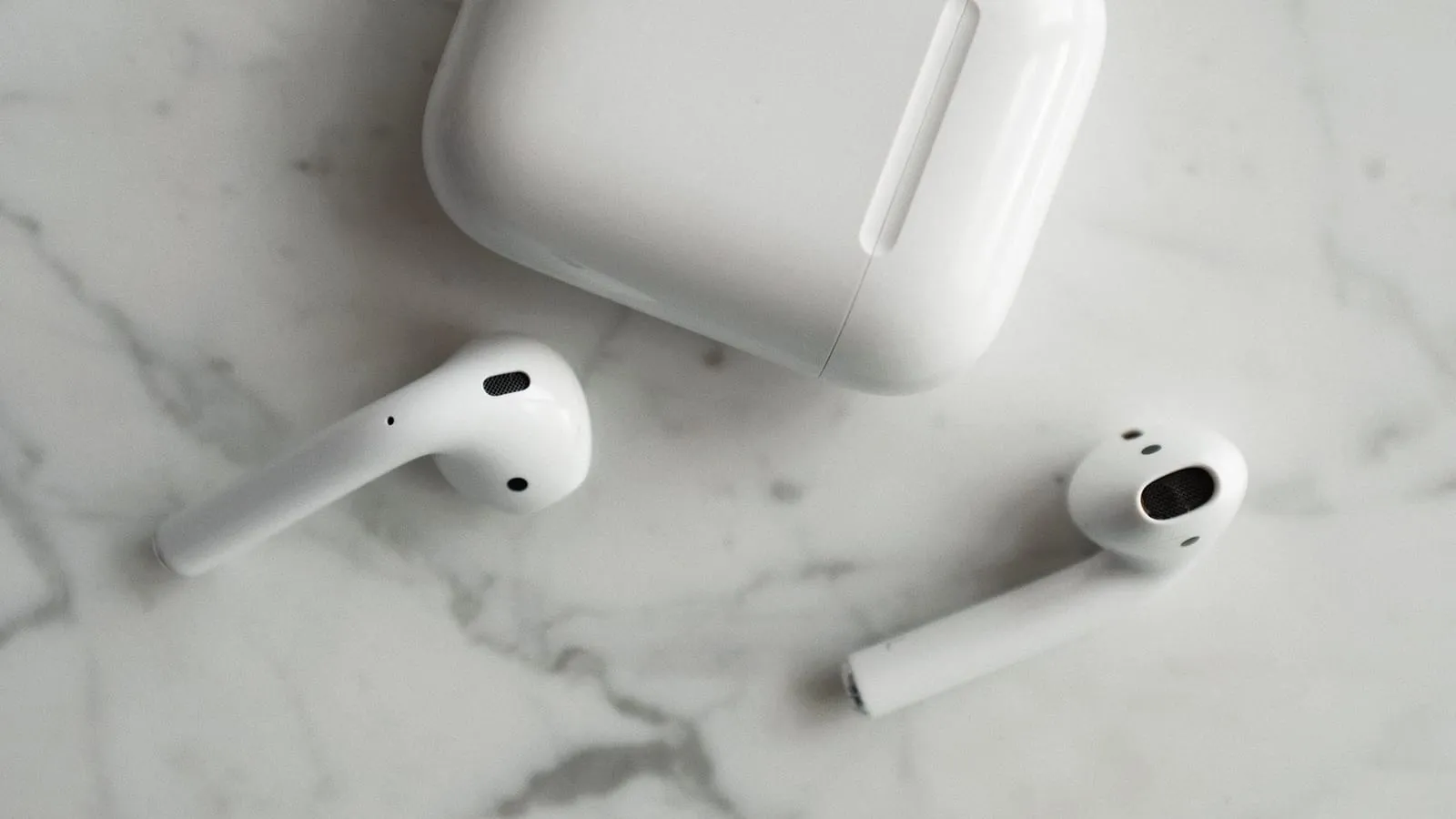
- Check for debris. If one AirPod sounds louder or quieter than the other, remove the ear tips. Look closely at the microphone and speaker mesh for any dirt or earwax.
- Clean your AirPods. If you find debris on the microphone or speaker mesh, clean your AirPods or AirPods Pro. This can clear blockages affecting sound quality or volume.
- Adjust audio balance. For volume problems where one AirPod is too loud or too quiet, go to Settings > Accessibility > Audio & Visual on your iPhone or iPad. Make sure the Balance slider is set directly in the middle. This ensures sound is evenly distributed between both AirPods.
How to Reset Your AirPods
If you’ve tried the basic troubleshooting steps and one of your AirPods still isn’t working, a full reset might solve the problem. This process clears all previous settings and connections, letting you set up your AirPods again from scratch.
Here’s how to reset your AirPods:
- Put your AirPods into their charging case and close the lid for 30 seconds.
- Open the lid and, on your iPhone or iPad, go to Settings > Bluetooth.
- Find your AirPods in the list, tap the ‘i’ symbol next to their name, and then select ‘Forget this device’.
- For AirPods 1, 2, 3, Pro 1, or Pro 2, open the charging case lid. Then, press and hold the setup button on the back of the case for about 15 seconds. Keep holding until the status light flashes amber, then white.
- If you have AirPods 4 or AirPods Pro 3, which have no setup button, follow Apple’s reset steps for your model in the Apple Support guide listed in the sources.
- Once the reset is complete, hold your AirPods in their open charging case near your iPhone or iPad to re-pair them.
Why One AirPod Might Drain Faster
One AirPod might lose battery charge faster than the other for several reasons. Often, it comes down to how you’re using them.
For example, the AirPod that handles the microphone uses more battery power than the one just playing audio. Your AirPods usually pick the first earbud you put in to be the microphone by default. So, if you always put the left AirPod in first, that one will likely drain faster.
Another common cause is how you’ve set up the double-tap controls. If you’ve configured one AirPod to activate Siri with a double-tap, that AirPod will use more battery.
Over time, all batteries wear out. AirPods batteries typically start to show signs of wear after about two years of regular use. If one AirPod is significantly older or has been used more heavily, its battery might degrade faster. This is similar to how your phone battery can start draining faster over time.
In some cases, a manufacturing defect or damage to one side of the charging case can prevent an AirPod from charging correctly or working as it should.
Advanced Audio Settings to Check
Sometimes, a single AirPod might seem to stop working because of your audio settings. You can find these settings in the Settings app on your iPhone, iPad, or Mac. To get to them, you need to be wearing your AirPods or have their charging case open.
For AirPods 4 and AirPods Pro models, you can switch between Active Noise Cancellation and Transparency mode by pressing and holding the force sensor on the AirPod stem. This mode-switching feature is usually on by default. You can also set this press-and-hold action to activate Siri instead of changing listening modes.
You can also customize the Listening Mode for each earbud individually. For example, you might set one AirPod to Adaptive mode, which automatically adjusts how much outside noise you hear based on your surroundings. The ‘Off’ option will turn off all advanced noise control features completely.
Other settings can also affect how your AirPods sound. Personalized Volume adjusts media volume based on your environment. Conversation Awareness can lower your media volume and reduce background noise when you start speaking. Loud Sound Reduction helps protect your hearing by lowering loud sounds.
For a more immersive experience, Personalized Spatial Audio makes sounds seem to come from all around you in 3D. If you have AirPods 2, 3, any AirPods Max, or any AirPods Pro models, you can use Headphone Accommodations to amplify softer sounds and adjust frequencies. AirPods Pro 2 and later can even function as a hearing aid, amplifying voices and sounds for mild to moderate hearing loss.
Related reading on Infotero: Why Is My AirPods Case Blinking Orange?.
Frequently asked questions
How do I check the battery level of my AirPods?
You can check the battery status of each AirPod and the charging case by opening the case near your iPhone or iPad.
What should I do if my AirPods are still not working after troubleshooting?
If your AirPods are still not working after trying basic fixes, you may need to reset them. This involves forgetting the device in Bluetooth settings.
Can a dirty AirPod cause sound issues?
Yes, debris on the microphone or speaker mesh can cause one AirPod to sound quieter or not work at all. Cleaning your AirPods can often resolve these volume issues.
Sources
Facts in this article were checked against these sources. Spotted an error? Report a correction.
- 1If your left or right AirPod isn't working - Apple Supportsupport.apple.com
- 2
- 3
- 4How to reset your AirPods and AirPods Pro - Apple Supportsupport.apple.com
- 5
- 69 Reasons Why One AirPod Dies Faster Than the Otherbusinessinsider.com