How to Set Up Parental Controls on an Android Phone or Tablet
Learn how to set up parental controls on Android devices using either the built-in device settings or the Google Family Link app.

The short answer
You can set up parental controls on an Android phone or tablet using two main methods: the device's built-in settings or the Google Family Link app. Both options allow you to manage screen time, set app limits, and filter content, helping to create a safer digital environment.
Key takeaways
- Android devices offer built-in parental controls for managing screen time, app limits, and content filters.
- The built-in controls require Android 17 or later and are protected by a PIN.
- Google Family Link is a free app for parents to manage their child's Android device remotely.
- Family Link allows parents to approve app downloads, track location, and manage content filters across Google services.
- Both methods help restrict access to age-inappropriate content and manage device usage.
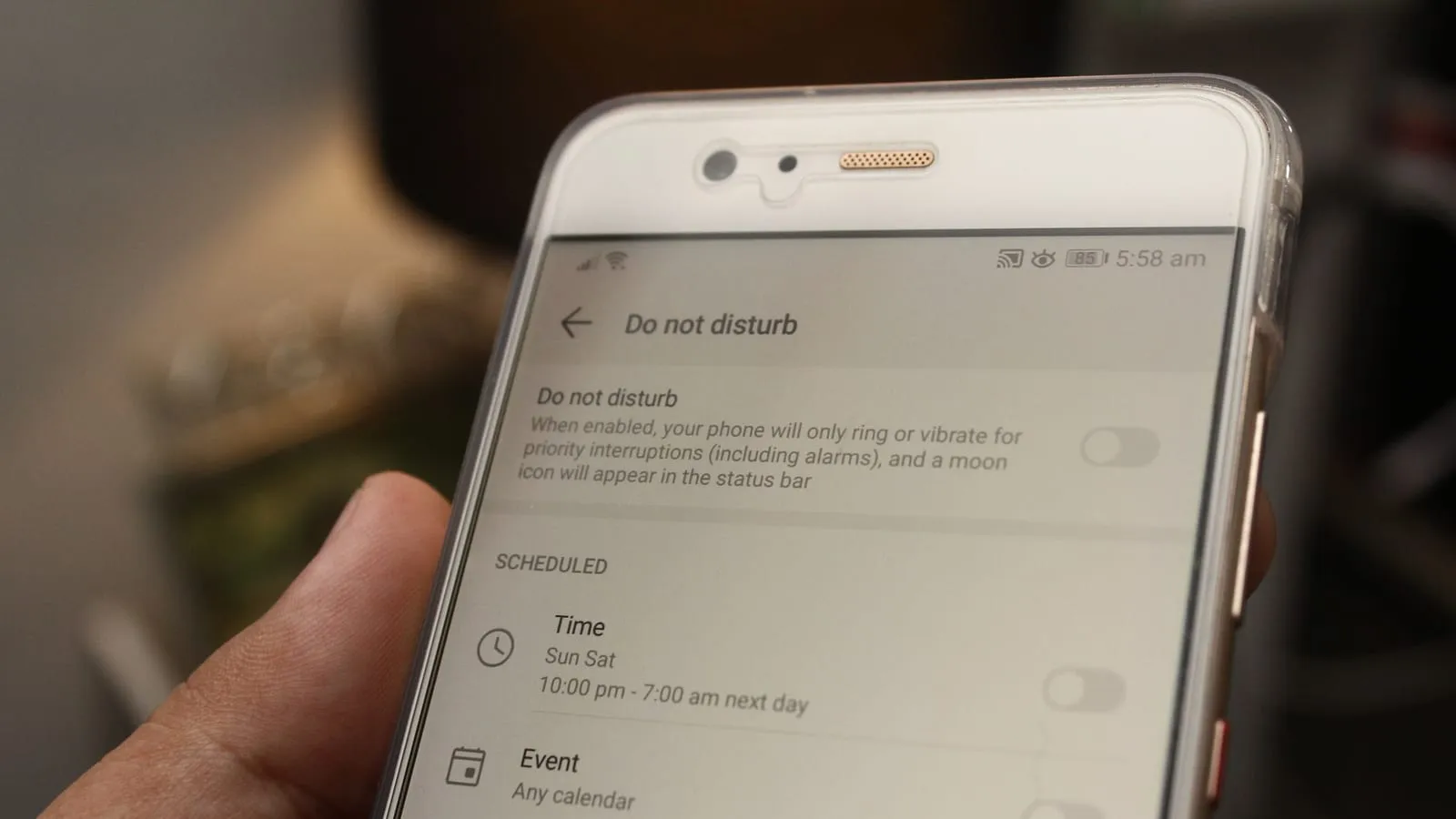
Setting up parental controls on an Android phone or tablet helps you manage screen time, restrict app access, and filter content for children. Android offers two main options for this: built-in device controls and the Google Family Link app. Both methods provide tools to create a safer digital environment for younger users, allowing you to customize settings based on your family’s needs.
Quick Fix Checklist: Setting Up Android Parental Controls
You can quickly set up parental controls on an Android device using either the built-in features or the Google Family Link app. The method you choose depends on the Android version installed on the device you want to monitor.
Here’s how to get started:
- Check the Android version. For on-device parental controls, the Android device must be running Android 17 or later. These built-in controls first launched on Pixel devices last year and are now rolling out to all Android devices that update to Android 17.
- Set up on-device parental controls. If the device has Android 17 or newer, open the device’s Settings app. Tap on Parental controls, then select Set up Parental controls PIN. This PIN needs to be at least four digits long. You can also add a recovery account, which helps if you forget the PIN later.
- Use Google Family Link. If the device you want to monitor runs Android 7.0 or above, but not Android 17, you can use the Google Family Link app. Family Link is a free app for parents, available on Android, iOS, and the web.
- Install and link Family Link. Parents need an Android device running Android 7.0 (Nougat) or above, or an iPhone with iOS 16 or above, to use the Family Link app. Download the app and link your Google Account to your child’s Google Account to set it up. For tips on managing your phone’s performance, you might want to read our guide on Why Is My Phone So Slow? Common Reasons and How to Fix Them.
Using Built-in Android Parental Controls
Android devices offer two main ways to set up parental controls: built-in device controls and the Google Family Link app. The built-in controls are found directly in your Android phone or tablet’s settings and are protected by a PIN. These controls let you manage screen time, set app limits, and filter content.
This feature first appeared on Pixel devices last year and is now rolling out to all Android devices that update to Android 17. Keep in mind that you can’t activate on-device controls if your device has multiple user profiles, such as a work profile.
Once active, the parental controls PIN is the same for all users on the device. Some device settings will be restricted to prevent users from bypassing the controls.
You can set a total daily limit for how long the device can be used. When this limit is reached, the device locks. You can also schedule “downtime” to automatically lock the device at certain hours, like overnight. If more time is needed during downtime or after a daily limit, you can add bonus time by entering the parental controls PIN. You can also set time limits for specific apps or block them completely. Be aware that blocking the Google app might affect how Android and other apps work.
The built-in controls also include web content filters, which can block explicit websites and filter explicit search results in Google Search and Chrome. These filters work with Google app version 16.42 or later, Chrome version 140.0.7332.0 or later, and Android System Webview version 139 or later. However, explicit content might still appear on other apps or browsers. You can also use app store filters to restrict age-inappropriate apps in Android app stores like the Google Play Store. These filters apply to new app installations but not to apps already on the device. If you have device-level app store filters on, they will override any less strict account-level settings for that store. To turn off Google Play Store content filters, you’ll need to delete your PIN in Android Parental Controls.
Managing Devices with Google Family Link
Google Family Link is a free app that helps parents manage their child’s Android device remotely. It works on Android phones and iPhones for parents, and you can also use it through a web browser. For the parent’s device, you’ll need Android 7.0 (Nougat) or newer, or iOS 16 or newer. The child’s device needs to run Android 7.0 or newer to be monitored.
To set it up, you download the Family Link app and link your Google Account with your child’s Google Account. You can then manage all the settings from your own phone.
Family Link offers several features:
- Time Management: You can set daily time limits for screen use and schedule breaks. Family Link gives insights into online time. During school hours, you can silence the child’s device or limit it to only approved apps.
- App Approvals: When your child wants to download a new app from the Google Play Store, you can review and approve or deny the request. This applies to purchases made through Google Play’s billing system, but not other billing systems. Your child won’t need approval for app updates, apps they’ve already had, or apps shared in a Family Library.
- Location Tracking: You can see your child’s device location on a map. You can also set up alerts to notify you when your child arrives at or leaves specific places, like school or a friend’s house. For this to work, the child’s device must be on, recently active, and connected to the internet.
- Content Filters and Privacy: Family Link lets you manage content filters for Google services like Chrome, Google Play, YouTube, and Search. You can block inappropriate websites and manage app and website permissions. You also have access to manage your child’s Google Account settings, including changing passwords or editing personal information.
Family Link controls work with supervised Google accounts, which give children access to Google products such as Search, Chrome, and Gmail. To add supervision to an existing Google Account for your child, you need to be 18 or older (or the applicable age in your country) and live in the same country as your child. The child must agree to the supervision, and both devices need to be nearby during setup. On an Android device, you can start the setup by going to Settings > Google > All services > Parental controls under ‘Kids & Family’, then following the prompts.
Stopping and Turning Off Parental Controls
You can stop supervision through Google Family Link or turn off parental controls directly on the Android device.
To stop Family Link supervision, a child under 18 needs a parent’s approval. Both the parent and child will get a notification when supervision ends. Parents cannot stop a child from ending supervision once they reach the applicable age. In many countries, this age is 13. Children over this age can manage their own Google Account.
To stop supervision using a parent’s device, open the Family Link app, choose the child’s profile, then tap Controls > Account Settings > About supervision, and follow the on-screen steps.
To stop supervision on a child’s Android device, it needs to be running Android 7.0 or a newer version. Go to Settings > Parental controls (on Android 8.1+ this is under Digital Wellbeing & parental controls, on other versions it’s under Google > All services > Kids & family). Then tap More > Stop supervision and verify with your parent sign-in or Parent Access Code.
You can also turn off parental controls directly in the Google Play Store. Open the Play Store app, go to Settings > Parental controls, and tap the toggle switch at the top. You will need to enter the parental controls PIN. If you don’t have the PIN, you can clear the Play Store app’s data by going to Android Settings > Apps (or Apps & notifications) > Google Play Store > Storage > Clear Data. This will remove the parental control settings.
If a child’s age in Family Link is set as younger than 13, you cannot turn off parental controls completely. However, you can make them less restrictive. To do this, open the Family Link app, tap the child’s account, then tap Manage settings > Controls on Google Play.
Frequently asked questions
What Android version do I need for built-in parental controls?
To use the built-in parental controls directly from your Android device's settings, the device must be running Android 17 or later. These controls were first launched on Pixel devices and are now expanding to all Android devices that update to Android 17.
Can I use Family Link to track my child's location?
Yes, Family Link allows parents to see their child's device location on a map and set alerts for specific places, such as when they arrive at or leave a location. The child's device needs to be powered on, recently active, and connected to the internet for this feature to work.
Do Family Link purchase approvals apply to all app purchases?
No, purchase approvals in Family Link only apply to purchases made through Google Play's billing system. They do not cover purchases made using alternate billing systems. Children also don't need approval for app updates, previously approved apps, or apps shared in Family Library.
What happens if I forget my parental controls PIN?
If you forget your parental controls PIN, you can add a recovery account during setup to help reset it. Without a recovery account, you might need to clear the Google Play Store app's data in Android settings to remove parental control settings, which will erase them completely.
Sources
Facts in this article were checked against these sources. Spotted an error? Report a correction.
- 1How to Use Parental Controls on| Androidandroid.com
- 2Google Family Link - Apps on Google Playplay.google.com
- 3
- 4Set up parental controls on an Android device - Android Helpsupport.google.com
- 5How to Turn Off Parental Controls on an Android Devicebusinessinsider.com
- 6
- 7How to Turn Off Parental Controls on an Android Devicebusinessinsider.com
- 8