How to Transfer Everything From Your Old iPhone to a New iPhone
Learn the easiest ways to transfer all your data, apps, and settings from an old iPhone to a new one using Quick Start, iCloud, or a computer backup.

The short answer
You can transfer everything from your old iPhone to a new iPhone using Quick Start, which allows direct device-to-device migration or downloading from iCloud. Other methods include restoring from an iCloud backup or a backup made with a computer.
Key takeaways
- Quick Start is the primary method for transferring data between iPhones, offering direct transfer or iCloud download options.
- Ensure both devices are updated and plugged in during Quick Start, which requires iOS 11 or later on your old device.
- Restoring from an iCloud backup is often the quickest way to get your new phone functional while apps download in the background.
- For a complete transfer including app sign-ins, use an encrypted backup from a Mac or PC.
- Always back up your old iPhone before starting any data transfer to your new device.
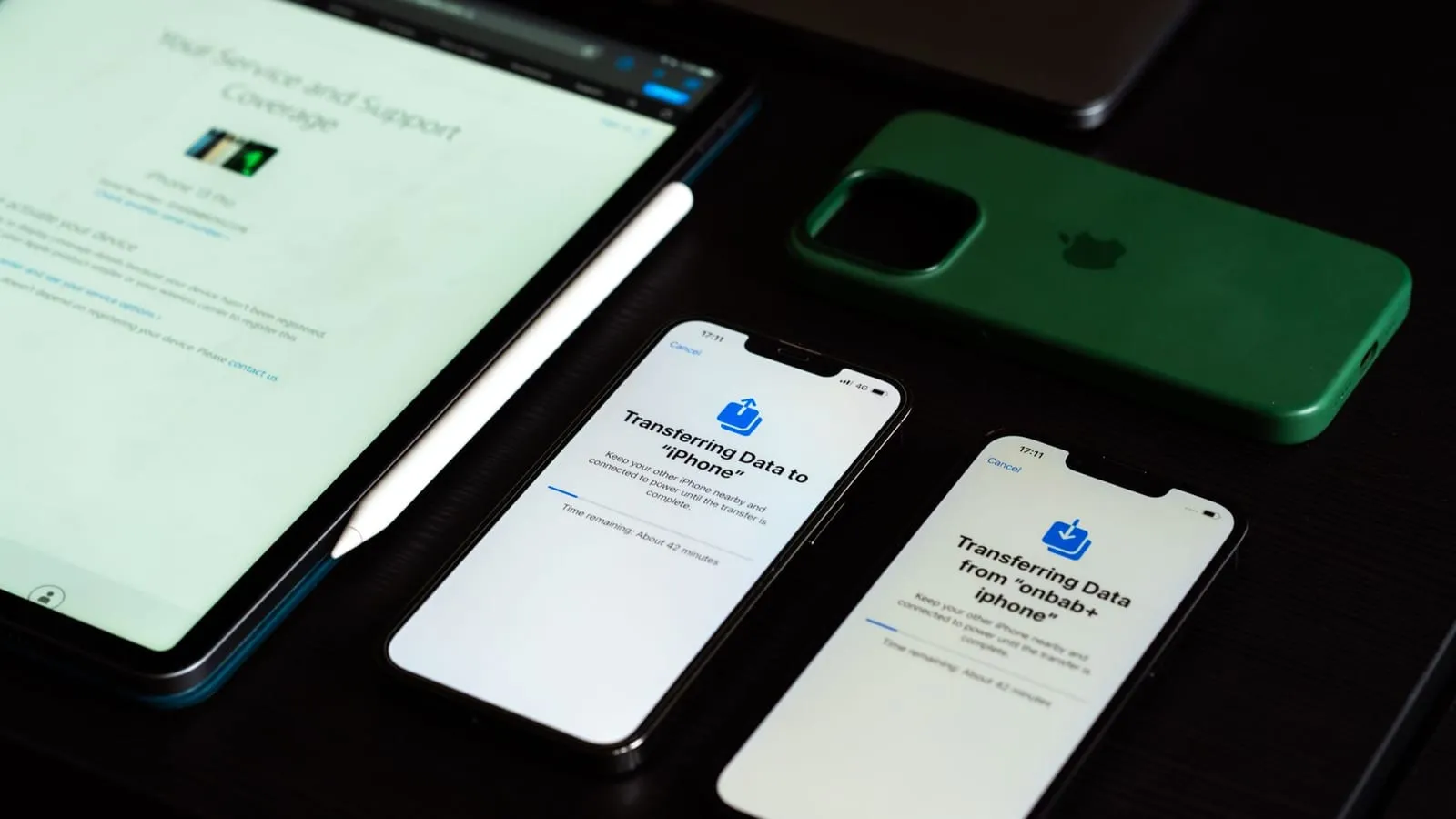
Transferring all your data from an old iPhone to a new one is a straightforward process, primarily using Apple’s Quick Start feature. This tool allows you to automatically set up your new device using your existing iPhone, either by transferring data directly or by downloading it from iCloud.
Quick Fix Checklist: Before You Start
Before you start transferring data to your new iPhone, take a few minutes to prepare both your old and new devices. This helps make the process smoother and prevents issues.
Here’s a quick checklist:
- Back up your old iPhone. Make sure you have a recent backup of your current device. This is an important step before any data transfer. If anything goes wrong during the transfer, you’ll still have all your data saved. See our guide on how to back up your phone properly.
- Update both iPhones. Ensure both your old and new iPhones are running the latest version of iOS. This can prevent compatibility problems during the transfer.
- Charge both devices. Keep both your old and new iPhones plugged into power during the entire data migration. This avoids the transfer stopping midway if a battery runs out.
- Connect to Wi-Fi and enable Bluetooth. For a wireless Quick Start transfer, your current iPhone needs to be connected to Wi-Fi and have Bluetooth turned on.
- Have your Apple ID password ready. You will need your Apple Account password during the data transfer process. It’s a good idea to have it handy before you begin.
- Keep devices close. During the transfer, keep both iPhones near each other. This ensures a strong and stable connection for the data migration.
Using Quick Start for Easy Transfer
Quick Start is the simplest method to move your information from an old iPhone to a new one automatically. Your current device needs to be running iOS 11, iPadOS 13, or a newer version to use it.
To begin, unlock your current iPhone and go to the Home Screen. Then, turn on your new iPhone and place it close to your old one. An animation will appear on the new device, and you should hold your current iPhone over it to center the animation in the viewfinder. If your current iPhone’s camera isn’t working, you can choose to authenticate manually.
Quick Start gives you two ways to transfer your data. You can download everything from iCloud, or transfer it directly from your old device. If you download from iCloud, apps and data will download in the background, so you can start using your new iPhone sooner. If you choose a direct transfer, you must wait until the process finishes on both devices before you can use either one. Direct transfer is a good option if you do not have a recent iCloud backup or enough iCloud storage space.
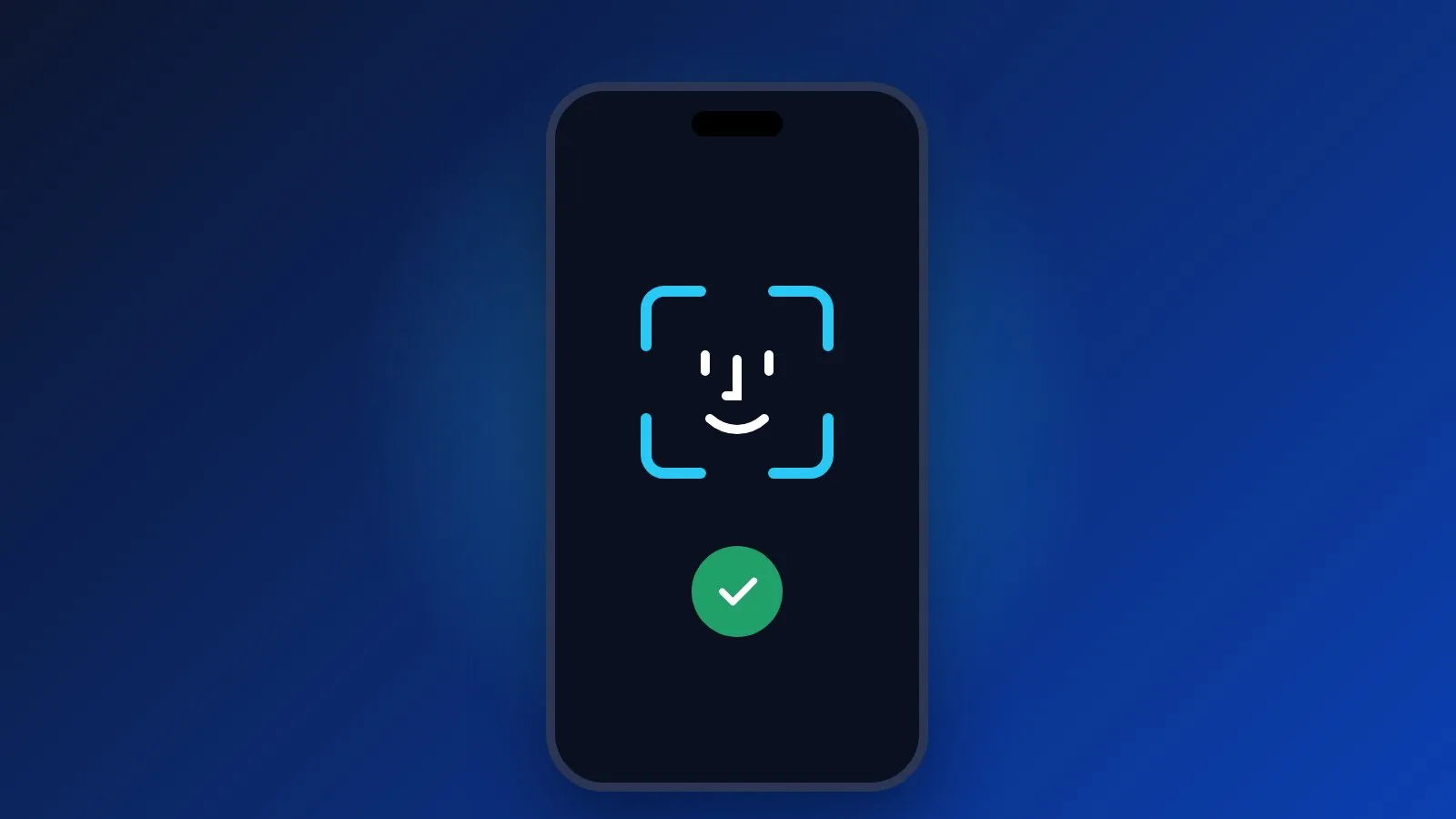
With iOS 12.4 and later, Quick Start can transfer almost everything, including messages, pictures, and app settings. During the process, you might be asked to connect your new device to Wi-Fi or its cellular network, and activate cellular service. Setting up Face ID or Touch ID is also part of the Quick Start process.
Both devices will be busy during the transfer, so pick a time when you won’t need your current iPhone for several minutes. The transfer time can vary depending on your network and how much data you are moving. If you’re short on space, read our guide on freeing up storage on your iPhone before you start.
Quick Start: Direct Transfer vs. iCloud Download
Quick Start gives you two main ways to move your data: downloading from an iCloud backup or transferring directly from your old iPhone. Both methods use the Quick Start feature, but they work differently.
| iCloud download | Direct transfer | |
|---|---|---|
| Where your data comes from | Your latest iCloud backup | Straight from your old iPhone |
| When you can use the new iPhone | Right away, while apps and data keep downloading in the background | Only after the transfer finishes on both devices |
| Best when | You have a recent iCloud backup | You have no recent iCloud backup or not enough iCloud storage |
Choose iCloud download if you want to start using your new phone quickly, and direct transfer if your iCloud backup is old or incomplete.
Restoring From an iCloud Backup
Restoring your new iPhone from a recent iCloud backup is often the easiest and quickest way to get it set up. This method lets you transfer data and content you’ve purchased from a backup of your old device.
To start, tap Restore from iCloud Backup during the setup process on your new iPhone. You’ll need to sign in with the same Apple ID you used on your previous iPhone. Apple might send a passcode to your old iPhone or another Apple device, or text it to you, for verification. Once signed in, choose the most recent backup from the list.
It’s a good idea to make sure your iCloud backup is current. If your last backup is more than a day or two old, create a new one on your old phone before you begin. To do this, open Settings on your old iPhone, search for ‘iCloud Backup’, and then tap Back Up Now. If you’ve just bought a new iPhone or iPad, you might get temporary iCloud storage to help with this.
Restoring from iCloud will bring over your settings and preferences. You can usually start using your new phone in about 15 minutes, while apps download in the background. Your phone will restore with all apps from your previous iPhone. After the restore, you will need to sign back into your accounts and apps. You can also choose to re-install apps one by one from the App Store. Apple keeps a record of all your purchased or free downloaded apps, so you can re-install them on any iPhone. Just search for the app in the App Store and tap the cloud icon instead of ‘Get’ or the price.
Using a Computer Backup for Comprehensive Transfer
This method is very thorough. It moves all your apps, settings, and personal preferences to the new device. You won’t need to sign into your apps again after the transfer.
To use this method, you first need to create an encrypted backup of your old iPhone.
- On a Mac: Open Finder. When creating the backup, check the Encrypt backup box and set a password.
- On a PC: Use iTunes or the Apple Devices app. Make sure to check the Encrypt backup box and enter a password.
Once your encrypted backup is ready, connect your new iPhone to the computer. Then, select the backup you just made and enter its password to begin the restore process.
After restoring from a computer backup, your new iPhone will be an exact copy of your old one. This process lets you transfer purchased content and data through the backup.
Transferring from Android to iPhone
If you are moving from an Android phone to a new iPhone, Apple offers a specific app to help transfer your data. The ‘Move to iOS’ app is available on Android devices. It helps you move important information to your new iPhone.
This app can transfer many types of data. However, it will not transfer music or PDF files that are stored directly on your Android phone. You might need to move these files manually, perhaps by uploading them to a cloud service or transferring them to a computer first.
Apple has updated the ‘Move to iOS’ app to make the transfer process quicker and simpler. It now supports Wi-Fi transfer speeds up to 5GHz, which helps move your data faster.
For even quicker transfers, you can connect your Android phone directly to your new iPhone. You will need a USB-C or a USB-C to Lightning cable for this connection. This wired connection can speed up the ‘Move to iOS’ process.
Related reading on Infotero: How to Transfer Data to a New Android Phone.
Frequently asked questions
What iOS version do I need for Quick Start?
Your current device needs to be running iOS 11, iPadOS 13, or later to use Quick Start for data transfer.
Can I use my old iPhone during the transfer?
No, both devices are occupied during the Quick Start process, so choose a time when you won't need to use your current device for several minutes.
What if my Quick Start prompt disappears?
If the Quick Start prompt disappears, restarting both devices may help to bring it back.
Does Quick Start transfer everything?
With iOS 12.4 and later, Quick Start can transfer almost everything, including messages, pictures, and app settings.
How long does a wireless transfer take?
Wireless direct transfer can take over an hour, depending on the amount of data, but the phone will show a generally accurate time estimate.
Sources
Facts in this article were checked against these sources. Spotted an error? Report a correction.
- 1
- 2
- 3
- 4
- 5How to Transfer Apps to New iPhone After Setupbusinessinsider.com
- 6How to Transfer Apps to New iPhone After Setupbusinessinsider.com
- 7
- 8Transferring data using Quick Start | Business Help | EE Businessbusiness.ee.co.uk