Why is Face ID not working on my iPhone?
If Face ID is not working on your iPhone, common causes include camera obstructions, software glitches, or security lockouts. Learn how to fix it.

The short answer
Face ID may not be working because something is blocking the camera, your iOS is outdated, or a security feature has temporarily disabled it. Simple fixes include cleaning the camera area, restarting your iPhone, and checking your Face ID settings. If those fail, you may need to reset it.
Key takeaways
- Anything covering the TrueDepth camera at the top of the screen, like a case or screen protector, can stop Face ID.
- Your iPhone asks for the passcode after a restart, after five failed scans, or after 48 hours without unlocking.
- Updating iOS and restarting the iPhone fix many software glitches.
- You can reset Face ID or add an alternate appearance if your look has changed.
- If Face ID can't even be set up, the camera hardware may need repair by Apple.
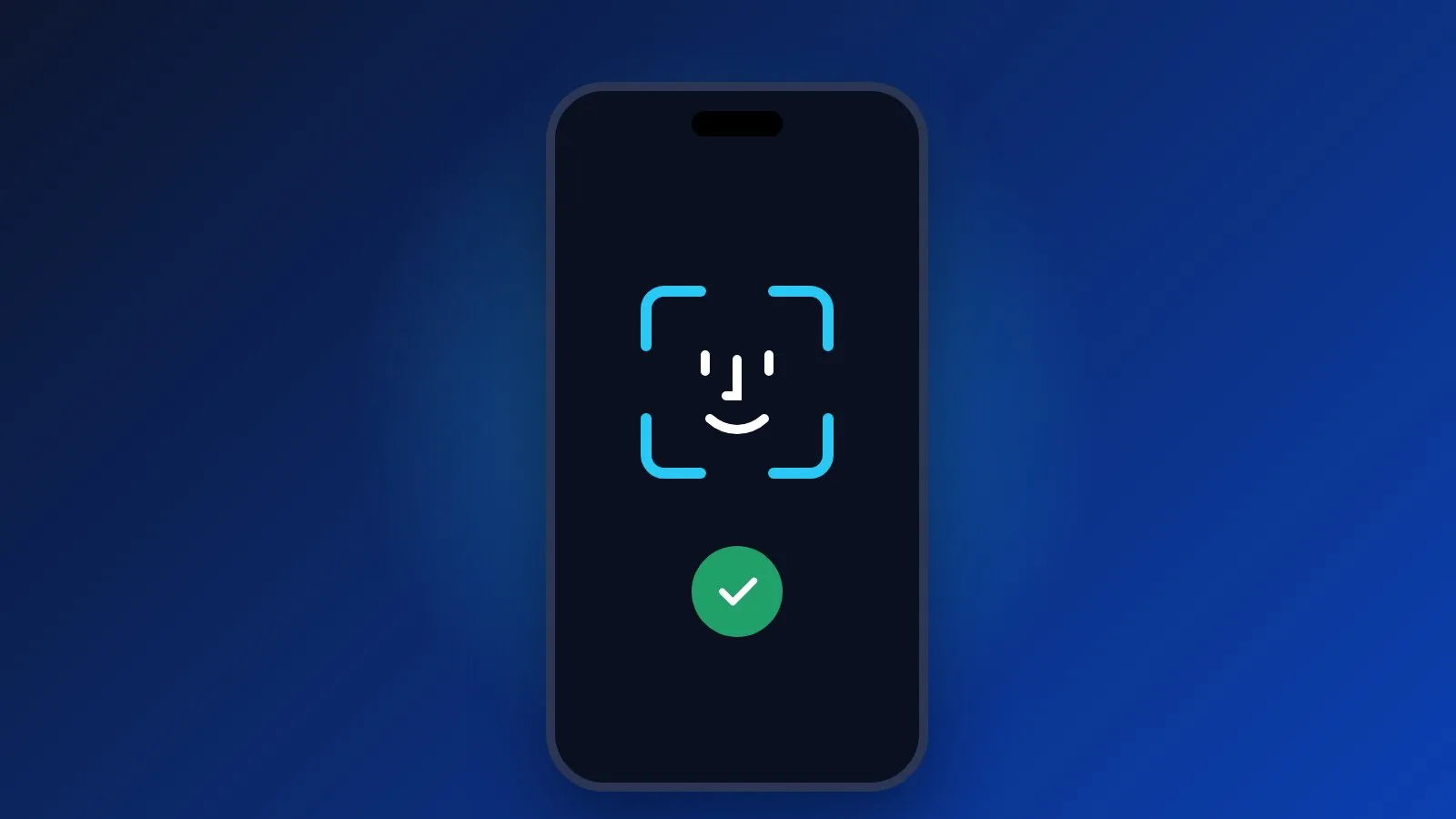
When Face ID stops recognizing you, the cause is usually small: a smudge or case edge over the camera, a setting that got switched off, or a security rule that asks for your passcode on purpose. Hardware faults are much rarer. Work through the checklist below first, then use the table to match what you’re seeing to the right fix.
Quick Fix Checklist
- Clear the camera area. The TrueDepth camera sits at the top of the screen. Wipe it with a soft cloth and make sure a case or screen protector isn’t covering it.
- Restart your iPhone. This clears temporary glitches that can stop Face ID working. After a restart you’ll need your passcode once.
- Check your settings. Go to Settings > Face ID & Passcode, enter your passcode and make sure the features you want, such as iPhone Unlock and Apple Pay, are turned on.
- Update iOS. Bugs in an older version can affect Face ID, so install the latest update in Settings > General > Software Update.
- Reset Face ID. If nothing else works, tap Reset Face ID in the same settings screen and set it up again from scratch.
Find Your Problem
| What you’re seeing | What to do |
|---|---|
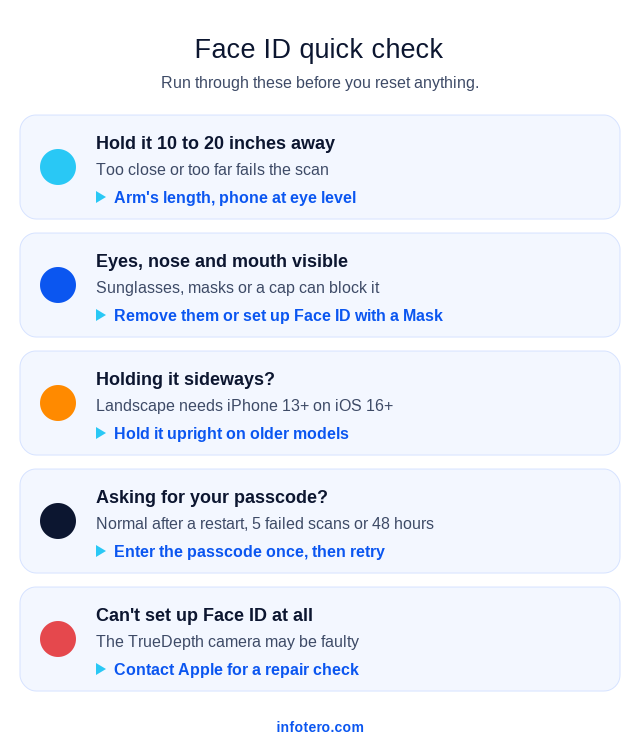
| It asks for your passcode after a few tries. | Normal: after five failed scans your iPhone requires the passcode. Unlock once, then try again. |
| It fails when you hold the phone sideways. | Landscape works only on iPhone 13 and later with iOS 16 or newer. On older models, hold the phone upright. |
| It stopped working after you changed your look. | Set up an alternate appearance so Face ID learns the new look. |
| It fails with sunglasses on. | Some sunglasses block the infrared light Face ID uses. Your eyes, nose and mouth must be visible. |
| It fails with a face mask. | Face ID with a Mask needs an iPhone 12 or later on iOS 15.4 or newer, and works only in portrait. |
| You can’t set up Face ID at all. | This points to a hardware problem with the TrueDepth camera. Contact Apple. |
Why Your iPhone Asks for a Passcode Instead
Sometimes Face ID works fine but your iPhone still asks for the passcode. That is a deliberate security rule, not a fault. You’ll always need the passcode after turning the phone on or restarting it, after five failed face scans, and when the phone hasn’t been unlocked for 48 hours.
Face ID also switches off until you enter your passcode if you open the Emergency SOS screen by holding the side button and a volume button, or if someone sends a remote lock command, as happens when a phone is reported lost. In all these cases, Face ID starts working again right after you unlock with your passcode.
How to Hold Your Phone for a Good Scan
Hold your iPhone 10 to 20 inches from your face, and make sure nothing covers your eyes, nose or mouth. On models older than iPhone 13, hold the phone upright in portrait. An iPad with Face ID works in any orientation.
Changes in Your Appearance
Face ID adapts to small, everyday changes in how you look, but a big change, like shaving off a full beard, can be too much at once. If you often switch between looks, go to Settings > Face ID & Passcode and tap Set Up an Alternate Appearance.
The same trick helps with new glasses. Face ID works with most clear and prescription glasses, but if a new pair makes it unreliable, set up the alternate appearance while wearing them.
When to Contact Apple Support
If you can’t set up Face ID at all, or you see an error during setup, the TrueDepth camera may be faulty. This is not a do-it-yourself repair. The camera uses laser components, and Apple warns that a bad repair or non-genuine parts could cause harmful exposure to your eyes or skin. Book a repair with Apple or an Apple Authorized Service Provider.
Related reading on Infotero: What to Do If Your iPhone Is Stuck on the Apple Logo and How to Turn Off Your iPhone.
Frequently asked questions
Why does Face ID stop working and ask for a passcode?
This happens for security reasons, such as after restarting your phone, five failed scan attempts, or if the device has not been unlocked for 48 hours.
Does Face ID work with glasses or a mask?
Yes, Face ID works with most clear glasses. For masks, you need an iPhone 12 or newer with iOS 15.4 or later. It is not designed to work with many sunglasses.
Can I use Face ID in landscape mode on my iPhone?
On iPhone 13 models and later running iOS 16 or later, Face ID works in both portrait and landscape. On older models, it only works in portrait.
What is an alternate appearance for Face ID?
An alternate appearance lets you add a second look to improve recognition, such as with and without a beard or glasses. You can add one in Settings > Face ID & Passcode.
Sources
Facts in this article were checked against these sources. Spotted an error? Report a correction.
- 1
- 2If Face ID isn't working on your iPhone or iPad Pro - Apple Supportsupport.apple.com
- 3Use Face ID on your iPhone or iPad Pro - Apple Supportsupport.apple.com
- 4