How to Speed Up a Video on iPhone
Learn how to speed up videos on your iPhone using the Photos app for Slo-Mo clips or iMovie for regular footage.

The short answer
You can speed up videos on your iPhone using two main methods. For videos recorded with the Slo-Mo feature, you can adjust their speed directly in the Photos app. For regular videos, the free iMovie app allows you to increase playback speed.
Key takeaways
- Use the Photos app to speed up Slo-Mo videos.
- Use the free iMovie app for regular videos, speeding them up by up to 2x.
- Third-party apps offer more advanced speed control and features.
- iMovie is a free app for basic video editing on iPhone.
- Some third-party apps allow direct sharing to social media.
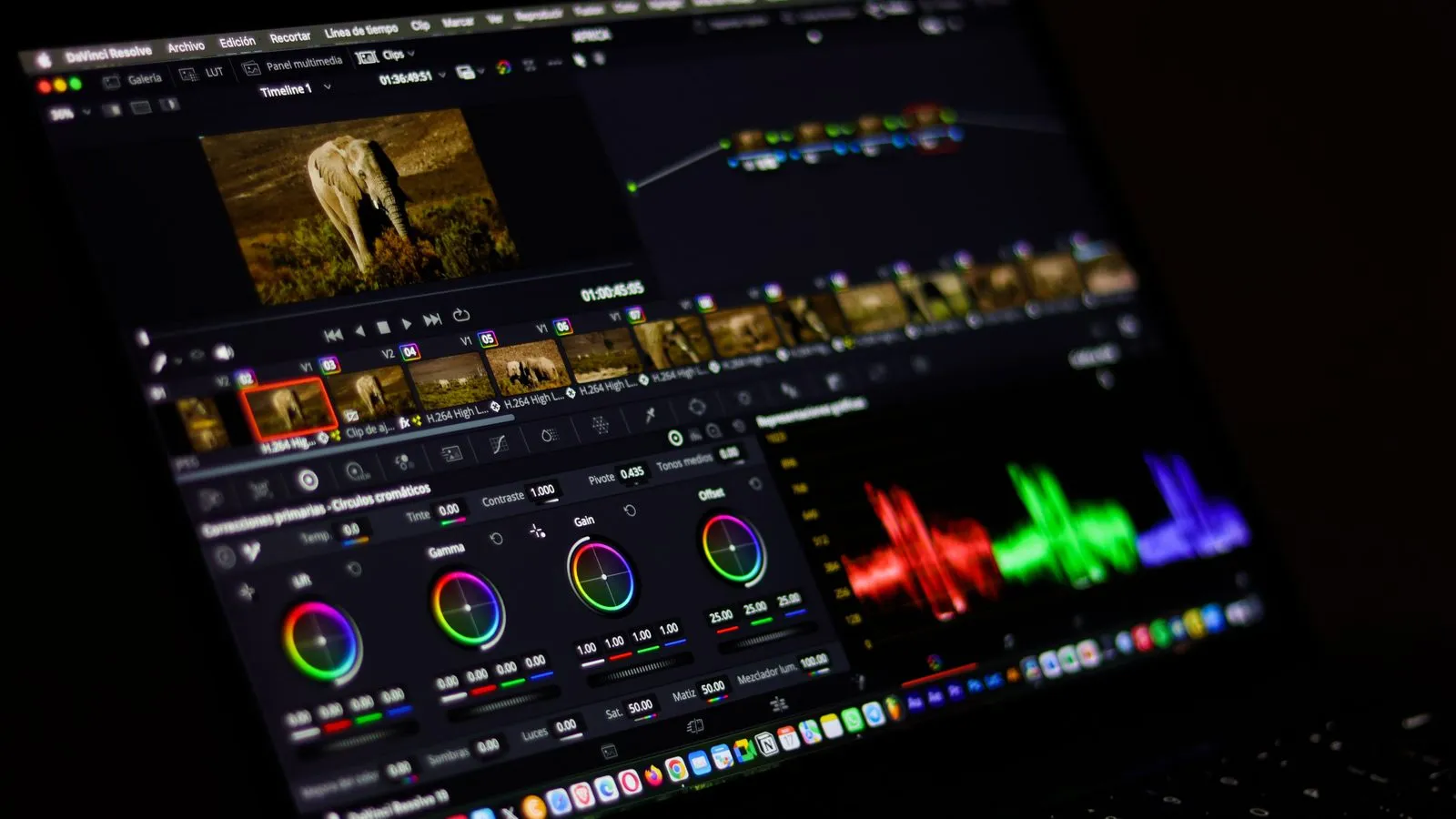
You can speed up a video on your iPhone using built-in tools or third-party apps. The method you choose depends on whether the video was originally recorded in slow motion or at a regular speed. For Slo-Mo videos, the Photos app offers a simple way to adjust playback speed. If you have a standard video, the free iMovie app provides a straightforward solution to increase its speed. Third-party apps also offer more advanced options for speeding up video iPhone content.
Speed Up Slo-Mo Videos in the Photos App
You can remove the slow-motion effect from videos recorded with your iPhone’s Slo-Mo feature. This allows you to watch the entire clip at normal speed.
To speed up a Slo-Mo video:
- Open the Photos app on your iPhone.
- Go to the Albums tab.
- Scroll down to “Media Types” and tap Slo-mo. This will show you all your slow-motion videos.
- Select the Slo-Mo video you want to change.
- Tap Edit in the top-right corner of the screen.
- Look for two tall white vertical bars under the video timeline. These bars control the slow-motion segment. Drag them together to remove the slow-motion effect.
- Tap Done in the bottom-right corner to save your changes.
This process only affects videos originally recorded with the Slo-Mo feature. If your phone is running slowly in general, you might want to learn about how to free up storage on your phone to improve performance.
Speed Up Regular Videos with iMovie
If you want to speed up a standard video, you can use the free iMovie app on your iPhone. This app lets you adjust the playback speed of your video clips.
Follow these steps to speed up a regular video in iMovie:
- Open the iMovie app on your iPhone. In the New Project window, tap Movie.
- Select the video you want to speed up from your camera roll. Then, tap Create Movie.
- Tap the video clip in the timeline at the bottom of the screen. This will bring up editing options.
- Select the speedometer-shaped speed tool icon.
- Drag the yellow slider to the right. Moving the slider further right increases the video’s speed. You can speed up a video by as much as two times its original speed using this tool.
- Once you are happy with the speed, tap Done in the top-left corner of the screen.
- To save the video to your iPhone, tap the Share button. You can then share it or save it to your Photos app.
If you find your phone is running slowly while editing videos, you might want to learn about common reasons and solutions. Read our guide on Why Is My Phone So Slow? Common Reasons and How to Fix Them for more information.
About the iMovie App
iMovie is a free video editing application for Apple’s iOS devices. It is designed to work well with the iOS operating system and offers basic editing tools. You can import high-quality ProRes videos and ProRaw photos into the app.
The app also provides royalty-free music that you can add to your videos. If you need help with your editing project, iMovie includes pre-made storyboard templates. The iMovie app itself takes up 618.3 MB of storage space on your device.
One thing to note is that iMovie does not let you share videos directly to social media platforms. After editing, you would need to save the video to your iPhone and then upload it through the social media app.
Third-Party Apps for More Control
You can use third-party apps for more options when speeding up videos. These apps often provide extra features that built-in iPhone tools do not.
One option is “Video Speed Changer - Editor”. This app lets you change video speed for effects like time-lapse or slow motion. It works with videos recorded on your iPhone or iPad, and also with footage from external cameras like drones. The app supports common video formats such as MP4 and MOV. To use it, you open a video and drag a slider to adjust its speed. A preview feature shows you both the original and the new video durations. The app saves processed videos without adding a watermark or logo. It also keeps the original video resolution, such as 1080p or 4K. All video processing happens directly on your device, so videos are not uploaded to external servers. You can save and share finished videos through iMessage, WhatsApp, or social media. The app is free to download but offers in-app purchases.
Another app is “Slow Fast Motion Video Editor”. This free app also lets you adjust video speed and exports videos without a watermark. It works in both portrait and landscape modes on iPhone and iPad. A useful feature of this app is its ability to correct audio pitch. It saves videos at full resolution and has no limits on video length. A premium version is available, offering access to a filter and music library. Paid plans for the premium version start at $4.99 per month or $14.99 per year, and there is a three-day free trial. If you often find your phone running slowly, you might be interested in Why Is My Phone So Slow? Common Reasons and How to Fix Them.
Here is a comparison of these two apps:
| Feature | Video Speed Changer - Editor | Slow Fast Motion Video Editor |
|---|---|---|
| Cost | Free with in-app purchases | Free with paid premium plans |
| Watermark on Export | No | No |
| Resolution Preservation | Yes, maintains original resolution | Yes, saves at full resolution |
| External Camera Support | Yes (drones, action cams) | Not specified |
| Audio Pitch Correction | Not specified | Yes |
| Video Length Restriction | Not specified | No |
| Local Processing | Yes, on device | Not specified |
| Orientation Support | Not specified | Portrait and landscape |
| Premium Features | In-app purchases for unspecified features | Filter and music library |
Related reading on Infotero: How to Free Up Storage on iPhone.
Frequently asked questions
Can I speed up any video on my iPhone?
You can speed up most videos on your iPhone. Videos recorded with the Slo-Mo feature can be adjusted in the Photos app, while regular videos can be sped up using the free iMovie app.
Does iMovie cost money to use on an iPhone?
No, the iMovie app is free to download and use on iOS devices. It includes basic editing features and is optimized for the iPhone.
Are there other apps to speed up videos on iPhone?
Yes, apps like "Video Speed Changer - Editor" and "Slow Fast Motion Video Editor" allow you to change video speed. These often offer additional features like preserving resolution or exporting without watermarks.
Can I share sped-up videos directly to social media from iMovie?
No, iMovie does not allow direct sharing of videos to social media platforms. You would need to save the video first and then upload it through the social media app.
How much faster can I make a video using iMovie?
With iMovie, you can speed up a video by up to two times its original speed. This is done by dragging a slider in the app's speed tool.
Sources
Facts in this article were checked against these sources. Spotted an error? Report a correction.
- 1How to Speed up a Video on iPhone in 2022businessinsider.com
- 2
- 3Video Speed Changer - Editor App - App Storeapps.apple.com
- 4
- 5