How to Turn Off Your iPhone
Learn how to turn off your iPhone using physical buttons, the Settings app, or Control Center, depending on your model and iOS version.

The short answer
To turn off your iPhone, the method depends on your model. Newer iPhones (X, 11, 12, 13, and later) require holding a volume button and the side button. Older models use either the side or top button. You can also turn off an iPhone through the Settings app or Control Center if you have iOS 11 or later.
Key takeaways
- Newer iPhones use a combination of volume and side buttons to power off.
- Older iPhones use either the side or top button.
- The Settings app offers a software-based shutdown option for iOS 11 and later.
- iOS 18 introduces a shutdown option via the Control Center.
- A force restart is different from a regular shutdown and is used for unresponsive devices.
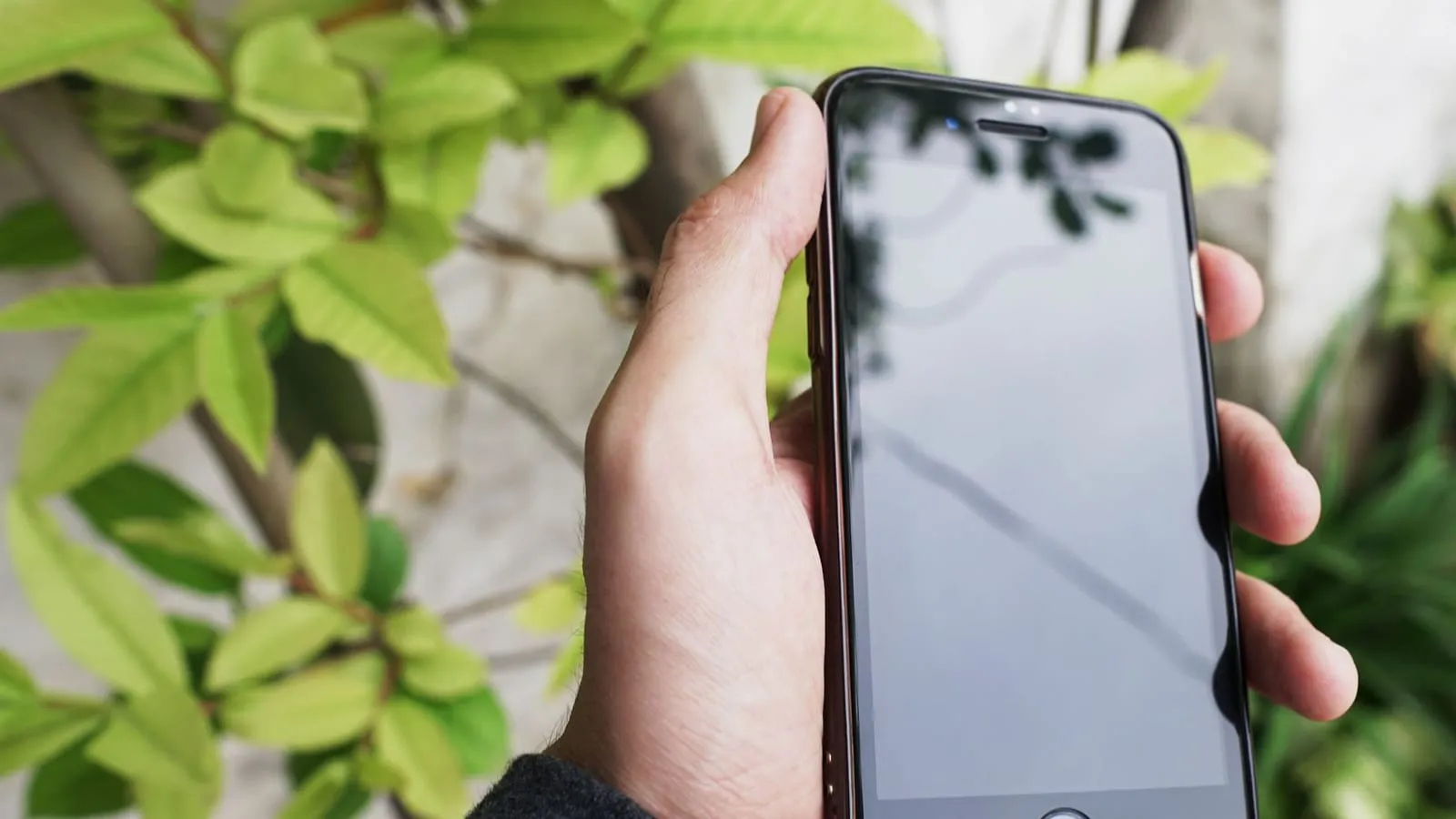
Turning off your iPhone can resolve minor glitches and conserve battery. The method to turn off an iPhone varies depending on its model and the iOS version it runs. Generally, you will press and hold certain physical buttons until a power-off slider appears, or use a software option in the Settings app or Control Center. After the slider appears, you drag it and wait about 30 seconds for the device to power down.
Turning Off Newer iPhones (X, 11, 12, 13, or Later)
Newer iPhone models, such as the iPhone X, 11, 12, 13, and later versions, typically use Face ID and do not have a Home button. The process for turning these devices off is different from older models.
Here are the steps to turn off a newer iPhone:
- Hold down the side button on the right side of your iPhone. At the same time, hold down either of the volume buttons on the left side.
- Continue holding both buttons until a power-off slider appears on your screen.
- Drag the slider across the screen to initiate the power-off sequence.
- Wait for about 30 seconds for your iPhone to completely shut down.
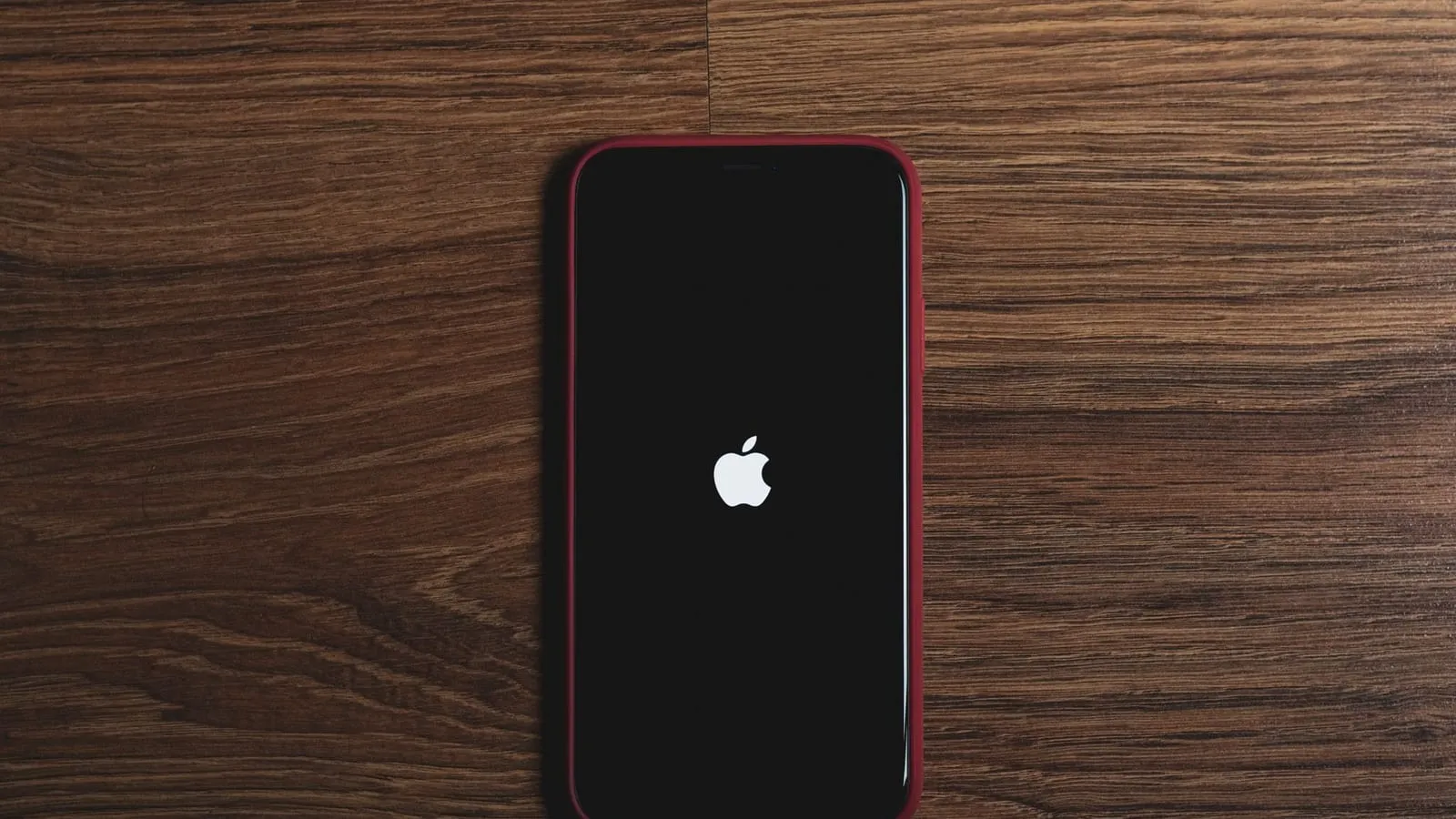
To turn your iPhone back on, press and hold the side button until the Apple logo is visible. If your iPhone is stuck on the Apple logo when restarting, you can find more information in our guide on What to Do If Your iPhone Is Stuck on the Apple Logo.
Turning Off iPhones with a Home Button (6, 7, 8, SE 2nd/3rd Gen)
You can turn off older iPhone models, like the iPhone 6, 7, 8, or SE (2nd or 3rd generation), using their side button. These models all feature a Home button. The power button on these iPhones is on the side of the device.
Here’s how to turn off your iPhone with a Home button:
- Press and hold the side button on your iPhone.
- Keep holding the button until a power-off slider appears on your screen.
- Drag the slider across the screen.
- Wait about 30 seconds for your iPhone to completely power down.
To turn your iPhone back on, press and hold the side button until the Apple logo is displayed.
Turning Off Older iPhones (SE 1st Gen, 5, or Older)
This section explains how to shut down very old iPhone models, such as the iPhone SE (1st generation), iPhone 5, or earlier versions. The power button on these devices is on the top of the phone.
Here is how to turn off these older iPhones:
- Press and hold the top button on your iPhone. Keep holding it until you see the power-off slider appear on the screen.
- Drag the slider across the screen.
- Wait about 30 seconds for the iPhone to completely turn off.
To turn the iPhone back on, press and hold the top button again until the Apple logo appears.
Using Software to Turn Off Your iPhone
You can also turn off your iPhone using its software, which can be helpful if the physical buttons are not working correctly or if you have mobility challenges.
Since iOS 11, iPhones have included a software option to power down the device. You can find this in the Settings app. Go to Settings > General > Shut Down, then slide the on-screen button to turn off your iPhone.
With the release of iOS 18, there is a new way to power off your iPhone through the Control Center. To use this method, swipe down from the top-right corner of your screen. Then, tap the power button icon and drag the slider to shut down your device.
When to Force Restart Your iPhone
A force restart is different from a regular shutdown. You would use a force restart if your iPhone is frozen or not responding. It can fix issues like an unresponsive screen or apps crashing. A regular restart is a standard way to turn your phone off and on again.
If your iPhone is working normally, a regular restart can refresh its software and fix minor problems, such as sound issues. But if the device is completely unresponsive, you will need a force restart. Be aware that a force restart will likely erase any unsaved data from an app you were using. For example, if you were typing a note and your iPhone froze, that note might be lost after a force restart.
The steps for restarting an iPhone vary by model. If your iPhone is stuck on the Apple logo, a force restart might be necessary.
How to Force Restart Different iPhone Models
If your iPhone is unresponsive, frozen, or not turning off normally, you might need to force restart it. This process quickly cuts power to the device and reboots it, which can fix many common issues. The exact steps depend on your iPhone model.
Here is how to force restart different iPhone models:
- For iPhone 8 and newer models, including iPhone SE (2nd and 3rd generation): This method applies to many newer iPhones.
- Quickly press and release the Volume Up button.
- Quickly press and release the Volume Down button.
- Press and hold the Side button until you see the Apple logo appear.
- For iPhone 7:
- Press and hold both the Side button and the Volume Down button at the same time.
- Keep holding them until the Apple logo appears on the screen.
- For iPhone 6, iPhone 6s, and iPhone SE (1st generation):
- Press and hold both the Home button and the Sleep/Wake button simultaneously.
- Continue holding both buttons until the Apple logo shows up.
If your iPhone remains stuck on the Apple logo after a force restart, you may need further troubleshooting.
Related reading on Infotero: Why is Face ID not working on my iPhone?.
Frequently asked questions
Can I turn off my iPhone without using the physical buttons?
Yes, if your iPhone runs iOS 11 or later, you can turn it off through the Settings app by going to Settings > General > Shut Down. In iOS 18, you can also use the Control Center to power down your device.
What is the difference between a regular restart and a force restart?
A regular restart is the standard way to turn an iPhone off and on, often used to refresh software and fix glitches. A force restart is specifically for when your device is frozen or unresponsive and cannot be turned off normally.
Will I lose data if I force restart my iPhone?
A force restart will likely erase any unsaved data if you were actively working on a project. It is primarily used to resolve issues when the iPhone is unresponsive.
Sources
Facts in this article were checked against these sources. Spotted an error? Report a correction.
- 1Turn iPhone on or off - Apple Supportsupport.apple.com
- 2Restart your iPhone - Apple Supportsupport.apple.com
- 3
- 4
- 5
- 6How to Restart and Force Restart Any iPhone Modelbusinessinsider.com