Why Your iPhone Hotspot Is Not Working and How to Fix It
iPhone Personal Hotspot not working or not showing up? Check these settings first, then try the fixes that get your laptop or tablet online again.

The short answer
Your iPhone hotspot might not be working due to incorrect settings, carrier restrictions, or software glitches. Common fixes include restarting devices, checking your cellular plan, and ensuring your iPhone's software is up to date. Sometimes, a simple network settings reset can resolve the problem.
Key takeaways
- Make sure Personal Hotspot is on and that your cellular plan includes it.
- Keep your iPhone on the Personal Hotspot screen while another device connects over Wi-Fi.
- Restart both your iPhone and the device you are connecting.
- Turn on Maximize Compatibility if a laptop or older device cannot see the hotspot.
- Update iOS, and reset network settings only as a last resort.
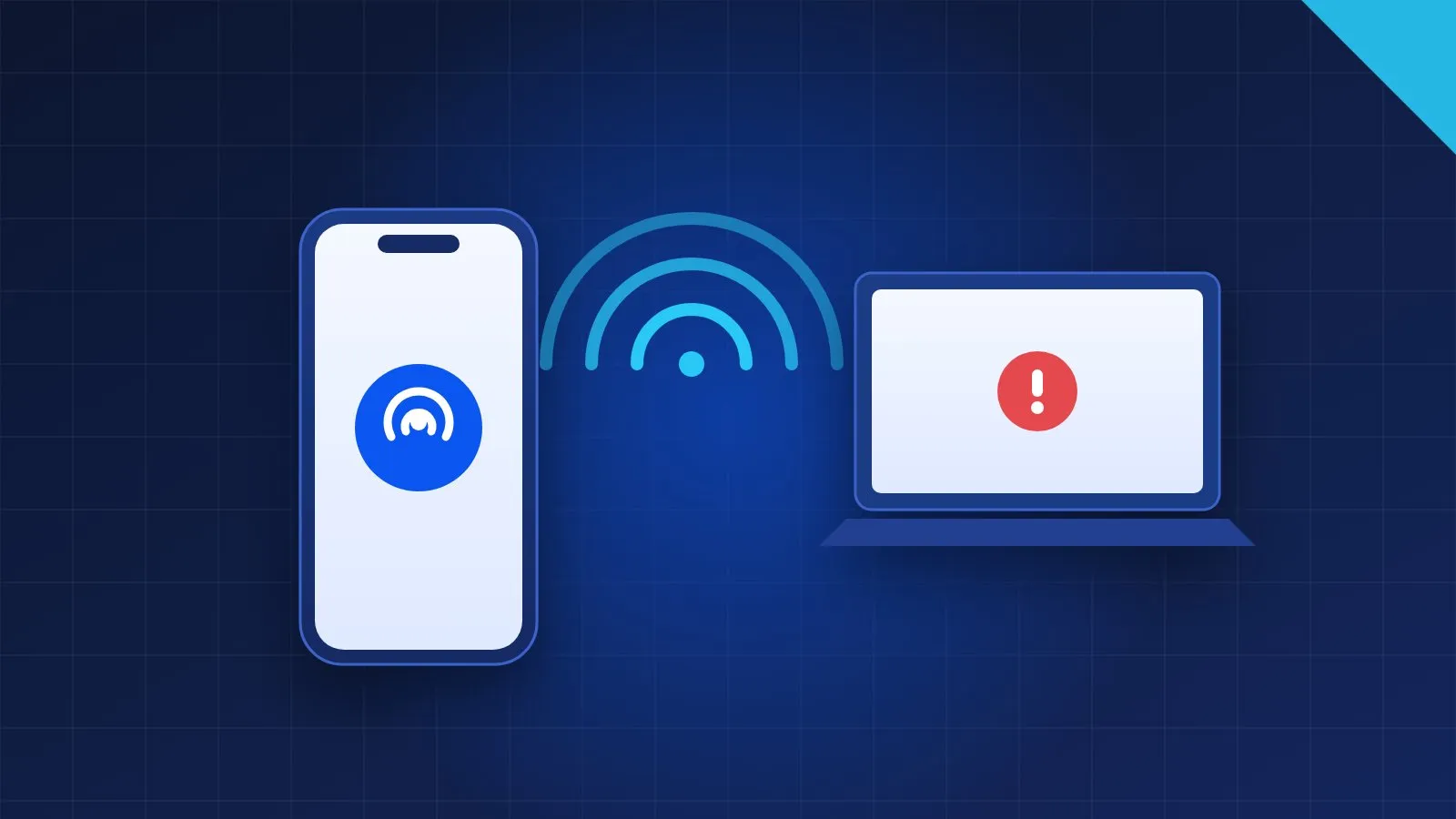
If your iPhone hotspot is not working, the cause is usually a setting, your carrier plan, or a small software glitch. Personal Hotspot shares your iPhone’s cellular data connection with other devices over Wi-Fi, Bluetooth or USB. Start with the checklist below; most problems are fixed within the first three steps.
Quick Fix Checklist
Go through these in order. Most hotspot problems are fixed by step 3.
- Turn on Allow Others to Join in Settings > Personal Hotspot, and stay on that screen while the other device connects.
- Turn on Maximize Compatibility on the same screen if a laptop or older device can’t see your hotspot.
- Toggle Airplane Mode on and off, then restart both your iPhone and the device you are connecting.
- Check your plan. If Personal Hotspot is missing from Settings, your carrier plan may not include it.
- Update iOS in Settings > General > Software Update.
- Reset network settings as a last resort. This erases saved Wi-Fi passwords.
Find Your Problem
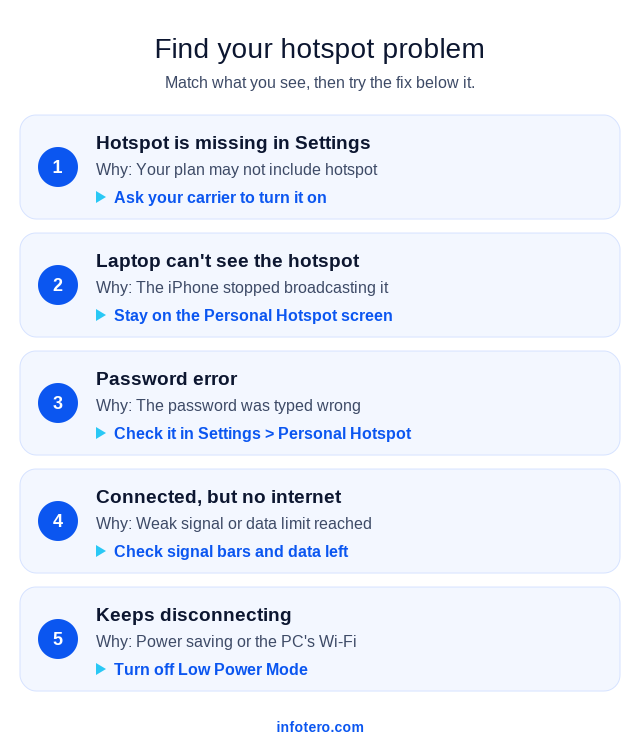
Hotspot trouble usually looks like one of these five problems. Find yours and start with the matching fix.
Check the Basics First
First make sure the hotspot is actually on. Go to Settings > Personal Hotspot and turn on Allow Others to Join. If you cannot find or turn on Personal Hotspot, your carrier may not support it on your plan.
Next, check your cellular connection. The hotspot only shares mobile data, so your iPhone needs cellular data turned on and a decent signal. If you have used up your data allowance, especially on a prepaid plan, your speed may be slowed so much that the hotspot seems broken even though devices still connect.
While other devices use your hotspot over Wi-Fi, your iPhone itself can only use cellular data, not Wi-Fi. When a device connects, the top of your iPhone screen turns blue and shows how many devices are connected. How many devices can join at once depends on your carrier and iPhone model.
Fixes for Wi-Fi Connection Problems
If the hotspot is on but your laptop or tablet still won’t connect, try these:
- Stay on the hotspot screen. Keep Settings > Personal Hotspot open on your iPhone until the other device connects. If no device has connected for a while, your iPhone may stop showing the hotspot until you open this screen again.
- Pick the right network. The hotspot uses the same name as your iPhone.
- Check the password. It is shown in Settings > Personal Hotspot. It must be at least eight characters long and use only standard English letters, numbers and some punctuation.
- Toggle Wi-Fi on both devices. Turn Wi-Fi off and on again on the device you are connecting, and on your iPhone too.
- Try another device. If a different phone or laptop connects fine, the problem is with the first device, not your iPhone.
- Turn off Low Power Mode. Power saving cuts back background activity and can interfere with the hotspot.
Advanced Settings and Software
Keep your iPhone or iPad on the latest software, because updates often fix connection bugs.
On iPhone 12 or later, the 11-inch iPad Pro (3rd generation or later), the 12.9-inch iPad Pro (5th generation or later) and the iPad mini (6th generation), you can turn on Maximize Compatibility in Personal Hotspot settings. It helps some devices connect, but it may make the internet slower and reduce Wi-Fi security for connected devices.
If nothing else works, reset your network settings. This erases saved Wi-Fi networks and passwords, cellular settings, and any VPN or APN settings, so note them down first.
If your other Apple devices use the same Apple Account or are in your Family Sharing group, they can use Instant Hotspot, which connects them without typing a password.
Connecting via USB or Bluetooth
If Wi-Fi won’t cooperate, USB and Bluetooth are good backups.
USB on a Mac: Update macOS, then connect your iPhone with a USB cable and tap Trust if your iPhone asks. In the Mac’s Network settings, look for iPhone USB. If it’s missing, add it; if it’s there, make it inactive and then active again.
USB on Windows: Install the latest version of Apple Devices or iTunes for Windows before connecting the cable.
Bluetooth: Turn on Bluetooth on both devices and keep your iPhone on the Bluetooth settings screen so it can be found. Bluetooth works for Macs, PCs and other devices, but to connect another iPhone or iPad, use Wi-Fi instead.
Save Data When You’re Done
Turn off Personal Hotspot when you don’t need it, so a laptop doesn’t quietly join and use your data in the background. To disconnect a device, switch it to another Wi-Fi network, unplug its USB cable, or turn off Allow Others to Join on your iPhone.
Related reading on Infotero: Why Is My Phone On SOS? Understanding and Fixing SOS Mode and How to Check Your Internet Speed and Understand the Results.
Frequently asked questions
Why does my iPhone hotspot keep disconnecting?
Your iPhone can stop showing the hotspot when no device is using it, and Low Power Mode can also interfere. Turn off Low Power Mode, keep the Personal Hotspot screen open while connecting, and check that your laptop is not set to drop Wi-Fi to save power.
Why can't I find or turn on Personal Hotspot on my iPhone?
If you cannot find or enable Personal Hotspot, your wireless carrier may not have activated the feature, or your current plan might not include hotspot use.
What should I do if I get a password error when connecting to my iPhone hotspot?
Check the Wi-Fi password in Settings > Personal Hotspot on your iPhone. It must be at least eight characters long and use only standard English letters, numbers and some punctuation.
Can I connect to an iPhone hotspot using a USB cable?
Yes. On a Mac, update macOS and connect the iPhone with a USB cable. On a Windows PC, install the latest version of Apple Devices or iTunes first.
What is Maximize Compatibility in iPhone hotspot settings?
On iPhone 12 and later and some iPads, Maximize Compatibility can help older devices find and join the hotspot. It may make the connection slower and reduce Wi-Fi security for connected devices.
Why does my hotspot connect but have no internet?
The hotspot only shares your cellular data. If your signal is weak, mobile data is off, or you have used up your data allowance, connected devices will join but cannot load anything.
Sources
Facts in this article were checked against these sources. Spotted an error? Report a correction.
- 1
- 2How to set up a Personal Hotspotsph.tulane.edu
- 3Connect to the Personal Hotspot of an iPhone or iPad - Apple Supportsupport.apple.com
- 4Why Is My Hotspot Not Working? Apple and Androidbusinessinsider.com