Why Does My Android Auto Keep Disconnecting?
Android Auto disconnections are often caused by USB cable issues, software problems, battery settings, or wireless interference. Learn how to fix them.

The short answer
Android Auto keeps disconnecting because of issues like a faulty USB cable, loose or dirty ports, outdated phone or car software, battery restrictions, or wireless interference.
Key takeaways
- Faulty or charge-only USB cables are a primary cause of wired Android Auto disconnections.
- Outdated phone or car software can lead to connection instability and disconnections.
- Wireless Android Auto is more prone to disconnections due to its complexity and susceptibility to interference.
- Battery optimization settings on your phone can sometimes interfere with Android Auto's operation.
- Regular maintenance, like cleaning ports and updating software, can prevent many disconnection issues.
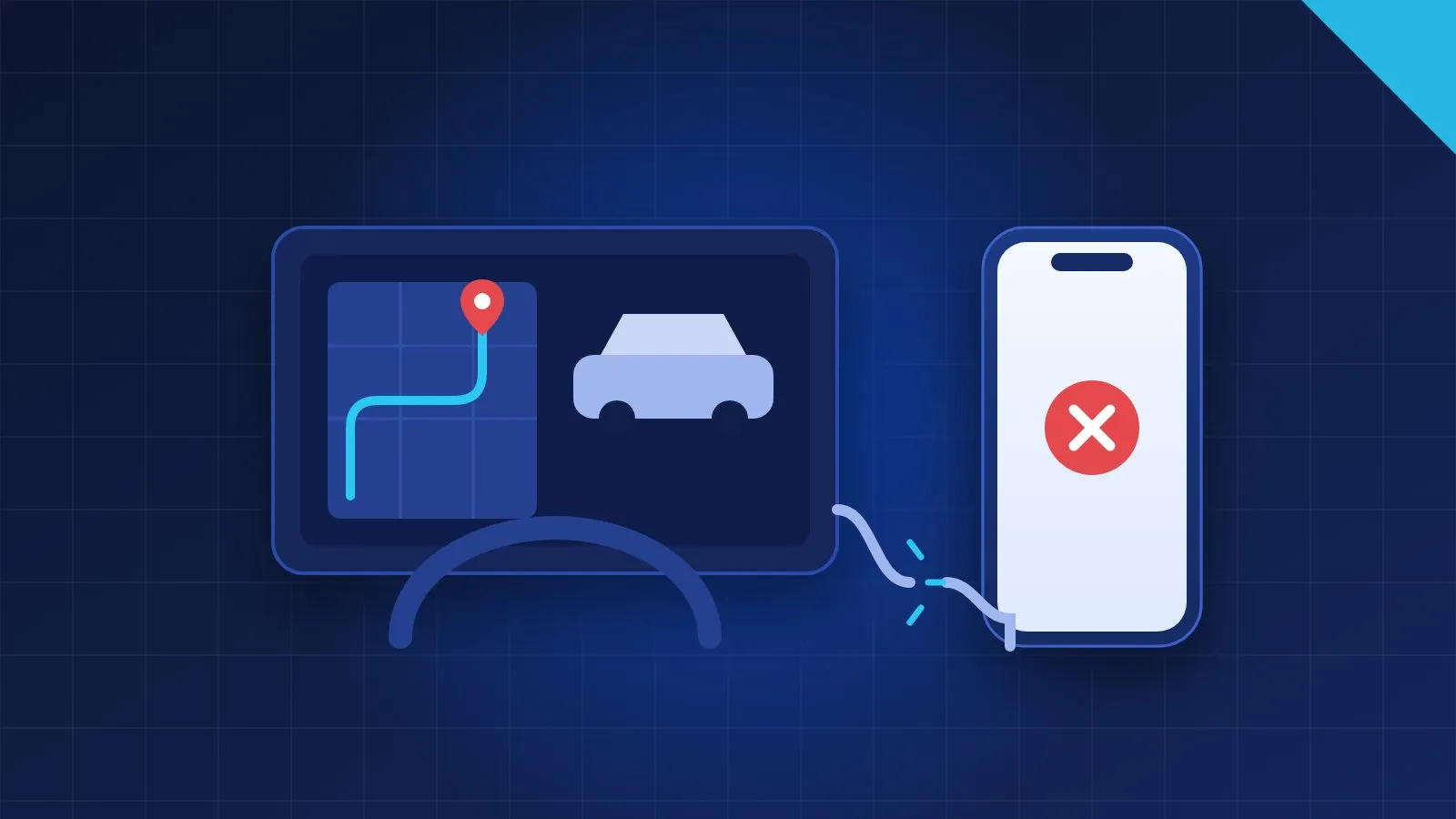
If you are wondering why does my Android Auto keep disconnecting, you are not alone. Android Auto keeps disconnecting for several common reasons, often stemming from issues with your USB cable, software, or wireless connection stability. Android Auto needs a consistent and reliable link to transfer data, authenticate your device, and manage power between your phone and your car’s infotainment system. Understanding these underlying causes can help you troubleshoot and resolve the problem effectively.
The USB Cable: A Common Culprit
A common reason for wired Android Auto disconnecting is the USB cable itself. Some USB cables are designed only for charging and cannot transfer data. Android Auto needs this data transfer to work. If your phone charges when connected to your car but Android Auto does not start, the cable might be charge-only. You might also need to change your phone’s USB settings from ‘Charging only’ to ‘File Transfer’.
USB cables can also degrade over time, even if you can’t see the damage. Bending the cable repeatedly or wear at the connectors can cause internal damage. Android Auto requires a steady flow of data, and a damaged or cheap cable might not provide this, leading to disconnections. Google suggests using a high-quality USB cable that is typically less than three feet long, and without hubs or extensions.
Beyond the cable, the USB port itself can cause issues. Dust can build up in the port, preventing a good connection. Cleaning the port regularly can help improve reliability.
Wireless Connection Challenges
Wireless Android Auto connections tend to disconnect more often than wired ones. This is because wireless connections are more complex. They rely on both Wi-Fi Direct for data transfer and Bluetooth for pairing and audio, making them more vulnerable to interference.
This setup can be affected by other devices, physical barriers, and even your phone case. For example, if you drive through an area with many Wi-Fi signals, your connection might drop.
Wireless Android Auto also needs more processing power from both your phone and your car. This can make it more sensitive to background tasks on your phone. Some phones may disconnect when they overheat, especially if they are using navigation and charging at the same time. Playing music from apps like YouTube Music or Waze can also lead to frequent disconnections.
Updates can sometimes cause new problems. Wireless Android Auto may disconnect every few minutes after an update, then reconnect automatically. Using third-party add-on displays can also lead to disconnection issues.
Putting a phone in airplane mode, while keeping Wi-Fi and Bluetooth on and mobile data off, has made wireless Android Auto connections stable for some users.
Software and System Requirements
Outdated software on your phone or car can often lead to Android Auto disconnecting. It is important to keep both your phone’s operating system and your car’s infotainment system updated to their latest versions.
Your phone also needs to meet certain requirements. For wired Android Auto, your smartphone must run Android 9 or a newer version. If you use wireless Android Auto, you generally need Android 11 or newer. Some Google and Samsung phones can use Android 10 for wireless connections, and specific Samsung Galaxy S8, S8 Plus, and Note 8 models can use Android 9.0.
Certain phone settings can interfere with the connection. Background apps like task killers or VPNs can conflict with Android Auto and cause disconnections. Battery restrictions on your phone can also be a cause. When your phone connects to your car via USB, a “handshake” process happens to establish the link. If this process is interrupted, or if your phone’s default USB configuration is set incorrectly, it can lead to disconnections.
If you’ve recently upgraded phones and transferred everything from your old device using a manufacturer’s tool, this can sometimes cause Android Auto issues. For phones with Android 10 or newer, Android Auto settings are integrated directly into your phone’s Settings menu. If you’re on Android 12, Google removed the “Android Auto for phone screens” feature, so you’ll need to use “Driving mode” instead. Sometimes, even being part of the Android Auto Beta Program can cause problems; opting out and uninstalling the beta update has resolved persistent disconnections for some users.
Android Auto works by projecting your phone’s interface onto your car’s screen. This means your car’s infotainment system largely controls how stable the connection is.
Problems can arise if your car’s infotainment software is old. Google regularly updates how Android Auto communicates with cars. If your car’s software, called firmware, is not updated to match, it can struggle to keep up. For example, the car might not respond quickly enough to security checks, which can cause your phone to disconnect as a safety measure.
Outdated car firmware can also lead to other display problems. You might notice navigation directions or other on-screen elements appearing too big. These issues suggest that your car’s system is not properly handling the information it receives from your phone.
Troubleshooting Steps to Try
If your Android Auto keeps disconnecting, several common problems could be the cause. These often relate to your USB cable, software, or wireless settings. Try these steps to fix the issue.
- Restart devices. A simple restart can often resolve temporary glitches. Try restarting your phone, unplugging and replugging the USB cable, or restarting your car.
- Check your USB cable. A weak or “charge-only” USB cable is a frequent cause of disconnections. Replace your cable with a high-quality data transfer cable designed for Android Auto.
- Clean ports. A loose or dirty USB port on your phone or car can interrupt the connection. Carefully clean out any debris from these ports.
- Update software. Outdated software on your phone or car’s infotainment system can lead to connection problems. Make sure both are running the latest versions.
- Clear app cache. Clearing the cache for the Android Auto app can fix performance issues.
- Adjust battery settings. Some phone battery optimization settings can restrict Android Auto’s background activity, causing disconnections. Check your phone’s battery settings and ensure Android Auto is not being optimized or restricted.
- Reset wireless connections. For wireless Android Auto issues, try turning your phone’s Bluetooth or Wi-Fi off and then back on. You can also “forget” your car in your phone’s Bluetooth or Wi-Fi settings, then reconnect it.
For more general troubleshooting, you might find useful information in our article Why Is My Android Auto Not Working?. If your phone is generally slow, you might want to read Why Is My Phone So Slow? Common Reasons and How to Fix Them. To ensure your phone has enough space for updates and apps, learn How to Free Up Storage on Your Phone. And for overall phone maintenance, consider reading How to Back Up Your Phone Properly.
Frequently asked questions
What kind of USB cable should I use for Android Auto?
Google recommends using a high-quality USB cable, preferably under three feet long, without hubs or extensions, for wired Android Auto connections. Some USB cables only charge devices and do not transfer data, which is necessary for Android Auto.
Does my phone need a specific Android version for Android Auto?
Wired Android Auto requires a smartphone running Android 9 or higher. For wireless Android Auto, you generally need Android 11 or higher, though some Google and Samsung phones can use Android 10, and specific Samsung Galaxy S8, S8 Plus, and Note 8 models can use Android 9.0.
Can car software affect Android Auto stability?
Yes, outdated car infotainment firmware can cause issues with Android Auto, especially when Google updates its communication protocols. If a car's firmware is not updated, it might respond too slowly to security handshakes, causing the phone to disconnect for safety.
Why does wireless Android Auto disconnect more often?
Wireless Android Auto disconnects more often than wired connections because it is more complex, using Wi-Fi Direct for data and Bluetooth for pairing. This makes it more vulnerable to interference from other devices, physical obstructions, and even phone cases.
What are some quick fixes for Android Auto disconnections?
Quick fixes include restarting your phone, unplugging and replugging the USB cable, or restarting the car. You can also try clearing the app cache, updating software, or adjusting battery optimization settings.
Sources
Facts in this article were checked against these sources. Spotted an error? Report a correction.
- 1Android Auto Keeps Disconnecting: 7 Proven Fixes (2025)mergescreens.com
- 2
- 3
- 4Android Auto kept disconnecting until I changed one hidden settingxda-developers.com
- 5Android Auto problems and how to fix themandroidauthority.com
- 6