Why Is My Android Auto Not Working?
Android Auto issues often stem from cable problems, incompatible devices, or incorrect settings. Learn how to troubleshoot common connection failures.

The short answer
Android Auto may not be working due to a faulty or incompatible USB cable, dust in your phone's USB port, or an outdated Android version. Your car's infotainment system also needs to be compatible, and you require an active data plan on your phone.
Key takeaways
- Check your USB cable first; a faulty or charge-only cable is a common issue.
- Ensure your phone runs a compatible Android version (Android 9.0 for wired, 11.0 for wireless).
- Verify your car's infotainment system supports Android Auto.
- Clean your phone's USB port to remove dust that can prevent connection.
- Confirm your phone has an active data plan, as it's required for Android Auto.
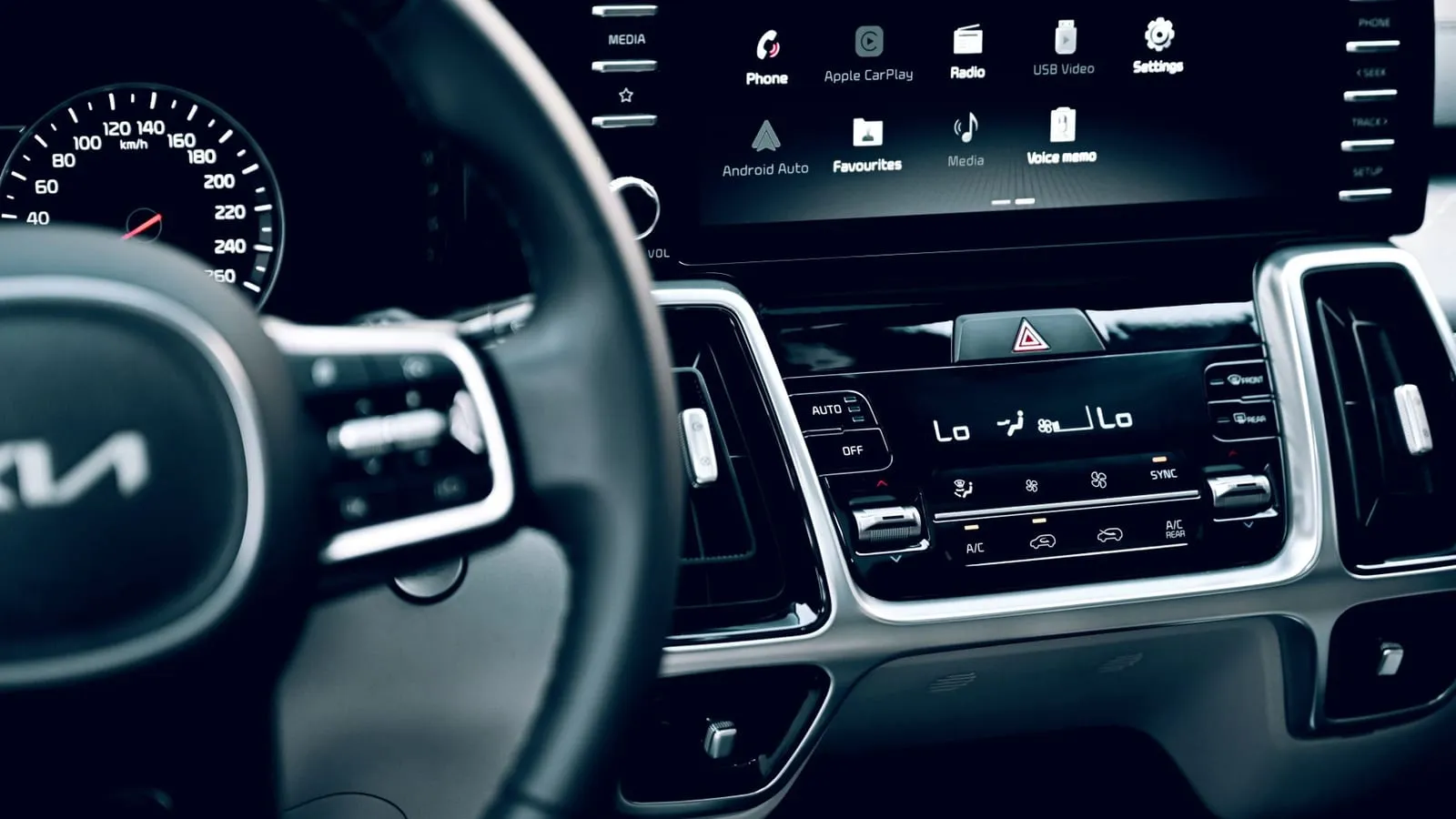
If your Android Auto is not working, it’s often due to common issues like a faulty USB cable, an incompatible phone or car, or incorrect settings. Android Auto is a technology built into Android phones that connects them to your car’s display, bringing apps like navigation, maps, calls, text messages, and music to your dashboard. You don’t need a separate app from the Play Store, as it’s integrated into your phone. Understanding the requirements and common troubleshooting steps can help you get it running again.
Check Your USB Cable and Phone Port
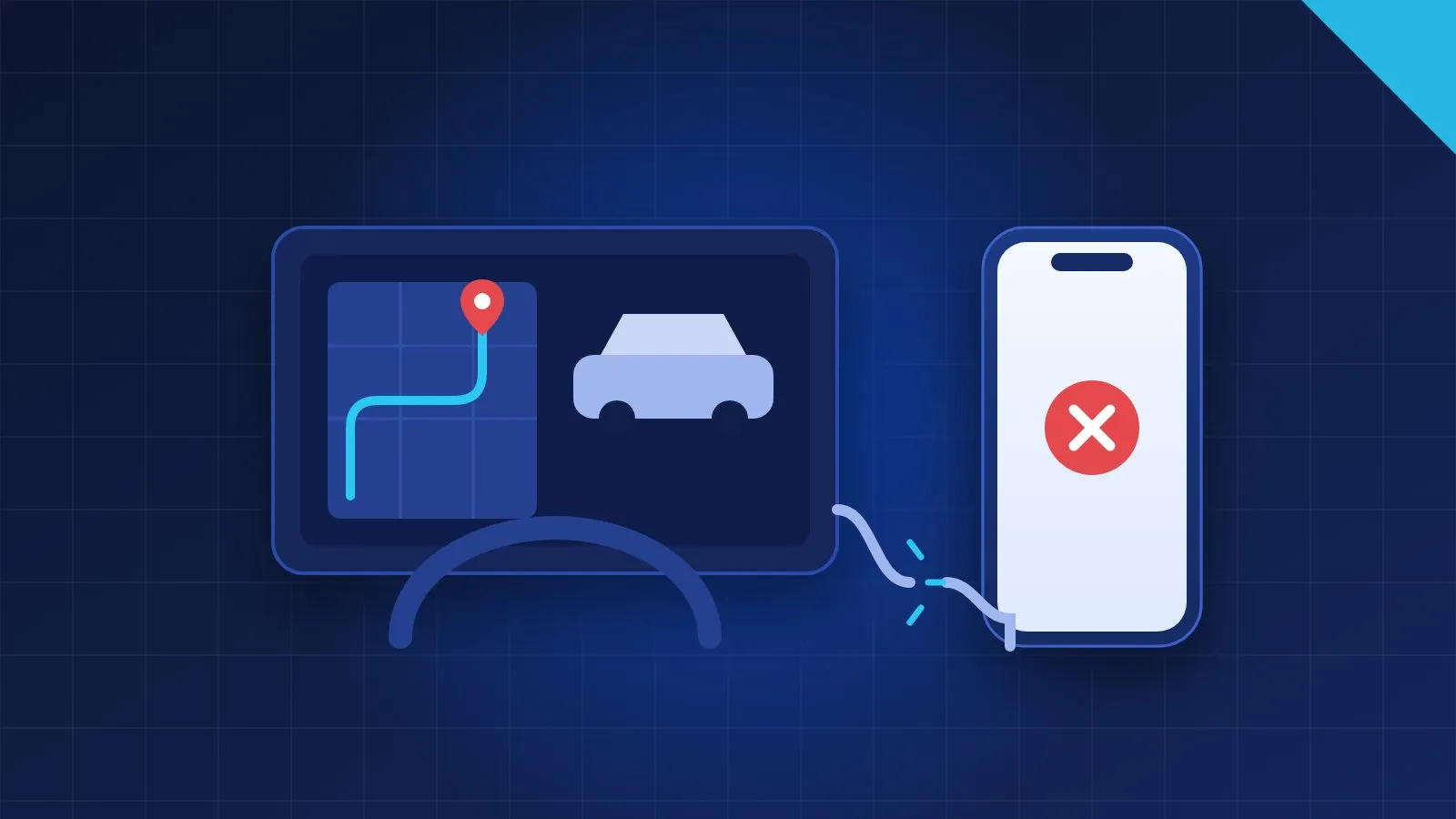
A common reason for Android Auto not working is a problem with the USB cable or your phone’s charging port. A faulty USB cable is often why Android Auto might not start. USB cables can wear out, and even a small tear can stop a proper connection. If Android Auto used to work but no longer does, replacing the USB cable can often solve the problem.
Not all USB cables work with all cars for Android Auto. The cable must support data transfer, not just charging. If your phone charges but Android Auto doesn’t connect, the cable might only support charging. It’s best to use a high-quality USB cable for reliable connections.
Also check your phone’s USB mode. If the cable supports data but Android Auto isn’t connecting, the phone’s USB mode might be set to ‘Charging only’. You should switch the USB mode to ‘File Transfer’.
The phone’s USB port can also cause issues. Dust in the port can lead to poor connections, so clean it regularly. If your car has several USB ports, try each one to see if that helps.
Ensure Your Phone and Car Are Compatible
Android Auto needs both your phone and your car to meet certain technical standards. For wired Android Auto, your phone needs Android 9.0 (Pie) or higher and a data plan. If you want to use Android Auto wirelessly, your phone needs Android 11.0 (Red Velvet Cake) or higher, a data plan, and it must support 5 GHz Wi-Fi. Keep in mind that Android Auto doesn’t work on devices running Android (Go edition).
If you’re in the EU and want to use wireless Android Auto, your phone has to meet extra regulatory requirements for 5 GHz Wi-Fi. For example, Google Pixel 3 and all newer Pixel models meet these specific EU requirements.
Your car also needs a compatible infotainment system. Most new cars sold after 2017 come with Android Auto built-in or as an optional software feature. However, older car stereos often don’t support it. If your car doesn’t have Android Auto, you might be able to add the feature with a CarPlay and Android Auto module.
Verify Phone Settings and Data Plan
Android Auto needs certain phone settings and an active data plan to work correctly. Without one, many features will not be available. You need an active data plan on your smartphone for Android Auto.
The Android version on your phone also matters. For wired Android Auto, your phone needs Android 9.0 (Pie) or higher. For wireless Android Auto, your phone must run Android 11.0 (Red Velvet Cake) or newer. Wireless Android Auto also requires your phone to support 5 GHz Wi-Fi.
You can check your Android version in your phone’s settings. For example, you might go to Settings > About Phone > Android version. If your phone is running an older Android version, you may need to update it. If you need to free up space on your phone to install updates, you can refer to our guide on How to Free Up Storage on Your Phone. If your phone is generally running slow, that could also affect performance. You can find tips in our article Why Is My Phone So Slow? Common Reasons and How to Fix Them.
Android Auto’s features will not work if you are in a country where it is not supported. This means if you travel outside of supported regions, the service may stop working.
Ensuring your phone meets these requirements can help resolve connection problems. You should also ensure your phone is backed up properly before making any major changes, as outlined in our guide How to Back Up Your Phone Properly.
Manage Android Auto Settings
Android Auto settings are managed directly on your phone, not through your car’s screen. Incorrect settings can stop the system from working. Any changes you make in the app on your phone take effect the next time you connect it.
To find these settings, open the Android Auto app on your phone. Then tap the profile icon or the three-dot menu, and choose Settings. Some settings might send you to your phone’s main settings to adjust permissions, such as allowing location access.
If you use wireless Android Auto, make sure it is enabled in the app’s settings. Wireless functionality also needs specific hardware in both your phone and your car’s head unit.
Another setting to check is ‘Always start’. If this is turned on, Android Auto will launch every time your phone connects via USB, even if you are just charging it at home.
There is also a hidden Developer Mode in Android Auto. You can access it by tapping a specific sequence in the app’s settings. This mode offers tools like GPS simulation and app testing without needing to be in your car.
If you are experiencing pop-up ads on your phone that interfere with Android Auto, you might find solutions in our guide How to Stop Pop-Up Ads on Your Phone.
Troubleshooting Steps for Connection Issues
If Android Auto isn’t working, try these steps to diagnose and solve common connection problems.
- Check your USB cable. A faulty USB cable is a common reason why Android Auto might not start. If Android Auto worked before but stopped, replacing the cable often fixes the problem. Sometimes, a cable can charge your phone but not transfer data, which means Android Auto won’t connect.
- Change your phone’s USB mode. If your phone charges but Android Auto doesn’t connect, your phone’s USB mode might be set to ‘Charging only’. You should switch the USB mode to ‘File Transfer’ if the cable supports data.
- Clean your phone’s USB port. Dust or debris in your phone’s USB port can lead to poor connections. Cleaning the port periodically can help.
- Try different USB ports in your car. If your car has multiple USB ports, try connecting your phone to each one. Some ports might be for charging only, while others support data transfer for Android Auto.
Related reading on Infotero: Why Does My Android Auto Keep Disconnecting?.
Frequently asked questions
Do I need to install an app for Android Auto?
No, you do not need to install a separate app from the Play Store. Android Auto is integrated into Android phones and works directly with your car's display.
What Android version do I need for Android Auto?
For wired Android Auto, your phone needs Android 9.0 (Pie) or higher. For wireless Android Auto, you need Android 11.0 (Red Velvet Cake) or higher, and your phone must support 5 GHz Wi-Fi.
Why would my USB cable stop working with Android Auto?
USB cables can wear out over time, and even minor damage can prevent a proper connection. The cable must also support data transfer, not just charging, for Android Auto to function.
Can I use Android Auto without a data plan?
No, you need an active data plan on your smartphone for Android Auto to work. Most features will also not work if you use it outside of supported countries.
How do I access Android Auto settings?
You can access Android Auto settings by opening the app on your phone, tapping the profile icon or three-dot menu, and selecting 'Settings'. Changes made here apply the next time you connect.
Sources
Facts in this article were checked against these sources. Spotted an error? Report a correction.
- 1My Android Auto app isn't working - Android Auto Helpsupport.google.com
- 2
- 3Get started with Android Auto - Android Auto Helpsupport.google.com
- 4
- 5
- 6Android Auto Settings to Change First in 2026mergescreens.com