How to Get a Samsung Phone Out of Safe Mode
Learn the simple ways to turn off Samsung Safe Mode, including restarting your phone or using the notification panel. Find out what to do if you're stuck.

The short answer
Restart your Samsung phone or tablet. You can also turn off Safe Mode by swiping down to open the notification panel, tapping the 'Safe mode is on' notification, and then selecting 'Turn off'.
Key takeaways
- Restarting your Samsung phone is the easiest way to exit Safe Mode.
- You can also turn off Safe Mode from the notification panel.
- A stuck Volume Down button or a faulty app can keep the phone in Safe Mode.
- A factory reset is the last resort and erases all your data.
- Safe Mode is a diagnostic tool that shows whether a downloaded app is causing problems.
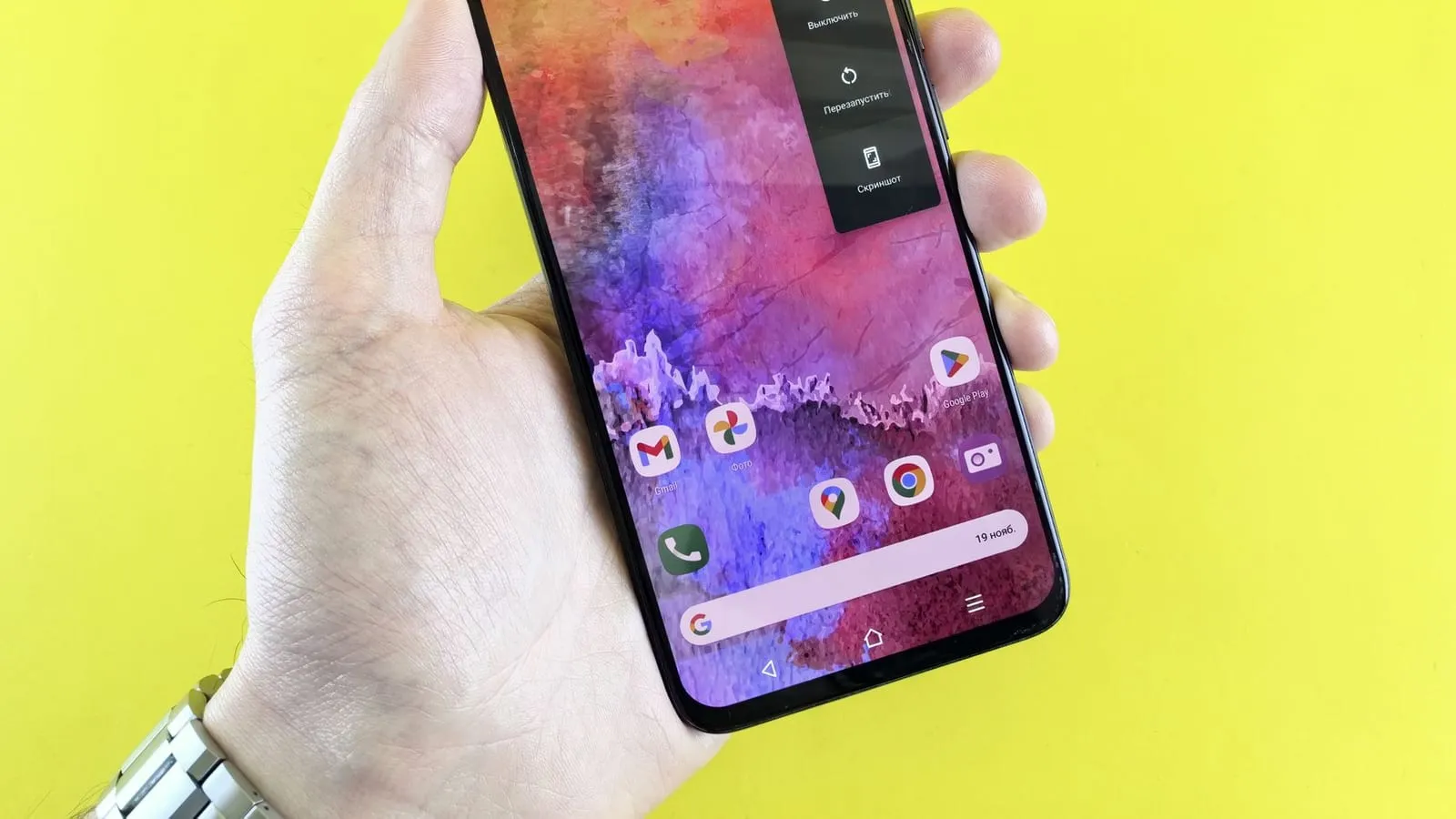
Seeing “Safe mode” in the corner of your Samsung screen usually means the phone restarted into a limited state, either because you held the wrong button during a restart or because the phone detected a problem. Safe Mode turns off every app you downloaded so you can find out whether one of them is causing trouble. Getting out normally takes one restart, and the steps below also cover what to do if it keeps coming back.
Quick Fix: How to Exit Safe Mode
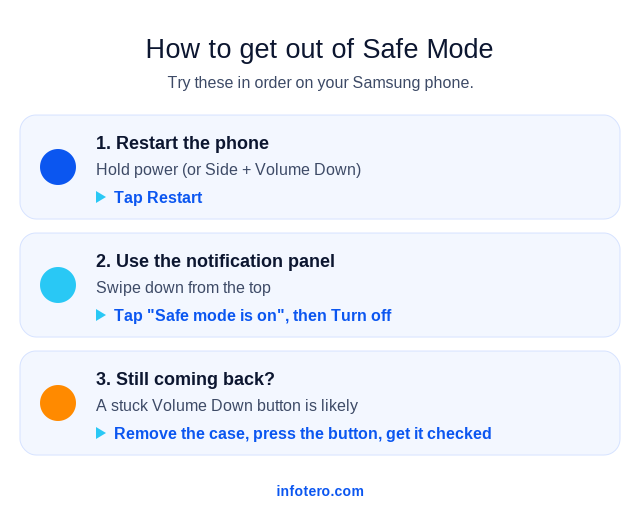
- Restart the phone. Press and hold the power button (on many models, the Side and Volume Down buttons together), then tap Restart. The phone should start normally and the “Safe mode” label will be gone.
- Use the notification panel. If a restart doesn’t work, swipe down from the top of the screen, tap Safe mode is on, then tap Turn off.
- Check the Volume Down button. If the phone keeps landing in Safe Mode, make sure the Volume Down button isn’t stuck or pressed by a tight case.
Find Your Problem
| What’s happening | What it means and what to do |
|---|---|
| The phone starts in Safe Mode every time. | The Volume Down button may be stuck. Remove the case and press the button a few times. If it continues, contact Samsung support for a repair check. |
| The phone works better in Safe Mode. | A downloaded app is probably the cause. Find and remove it using the steps below. |
| Problems continue even in Safe Mode. | An app isn’t the cause. It’s more likely a system problem or malware, so contact support. |
| Some built-in apps won’t open. | Normal in Safe Mode. They come back after you exit. |
What Safe Mode Does
While Safe Mode is on, your phone runs only its basic software. Downloaded apps won’t open, and on some Samsung models even pre-installed apps like Chrome, Gmail, My Files and Device Care may be unavailable. Calls and messages still work. Some Home screen widgets disappear and your wallpaper may reset, but your personal data is not deleted.
How to Find and Remove a Problem App
If the phone runs smoothly in Safe Mode, one of your downloaded apps is the likely cause.
- Start with recent downloads. Think about which apps you installed just before the problems began.
- Uninstall one app. In Safe Mode, go to Settings > Apps, pick the most recent app and tap Uninstall.
- Restart and test. Restart normally and use the phone as usual. If the problem is gone, you’ve found the app. If not, return to Safe Mode and remove the next one.
- Reinstall the others once you’ve found the culprit.
When to Factory Reset
If nothing else works, a factory reset is the last resort. It erases everything on the phone, so back up your photos, messages and files first. Turn the phone off, then hold the power button together with a volume button until recovery mode opens. Use Volume Down to highlight Wipe data/Factory reset, press power to select it, and when it finishes choose Reboot system now.
How to Enter Safe Mode on Purpose
To test whether an app is causing problems, open the power menu (hold Side and Volume Down, or swipe down and tap the power icon), then touch and hold Power off until the Safe mode icon appears, and tap it. If the phone is off, turn it on and hold Volume Down as soon as the Samsung logo appears, until it finishes starting up.
Related reading on Infotero: Why Android Apps Keep Crashing and How to Fix Them and How to Tell if Your Phone Has a Virus: Signs and Solutions.
Frequently asked questions
What is Samsung Safe Mode for?
It's a diagnostic tool that turns off downloaded apps so you can see whether one of them is causing crashes, freezing or battery drain.
How do I know if my phone is in Safe Mode?
The words "Safe mode" appear in the bottom-left corner of the screen.
Will I lose data when I exit Safe Mode?
No. Exiting Safe Mode doesn't delete your data, though some Home screen widgets may be removed and your wallpaper may reset.
Why does my Samsung keep starting in Safe Mode?
The most common cause is a stuck Volume Down button, which the phone reads as a request for Safe Mode every time it starts. A repair shop or Samsung support can check it.
Sources
Facts in this article were checked against these sources. Spotted an error? Report a correction.
- 1
- 2
- 3
- 4
- 5Safe modeeu.community.samsung.com
- 6Find problem apps by rebooting to safe mode on Android - Android Helpsupport.google.com
- 7