How to Tell if Your Phone Has a Virus: Signs and Solutions
Battery drain, strange pop-ups and apps you didn't install can mean malware. Learn how to check your Android phone or iPhone for a virus and remove it.

The short answer
True phone viruses are rare, but other malware is common. Warning signs include apps you didn't install, pop-up ads outside your browser, unexplained data use, and texts or charges you didn't make. Remove unknown apps, run Play Protect on Android, check profiles on iPhone, and change your passwords.
Key takeaways
- True viruses are rare on phones, but other malware such as adware and spyware is common.
- Many symptoms, like battery drain, usually have a simpler cause than malware.
- A browser pop-up saying "your phone has a virus" is almost always a scam ad.
- Android phones are more exposed to malware than iPhones, especially with apps from outside the Play Store.
- Remove unknown apps and profiles first; use safe mode or a factory reset only if problems continue.
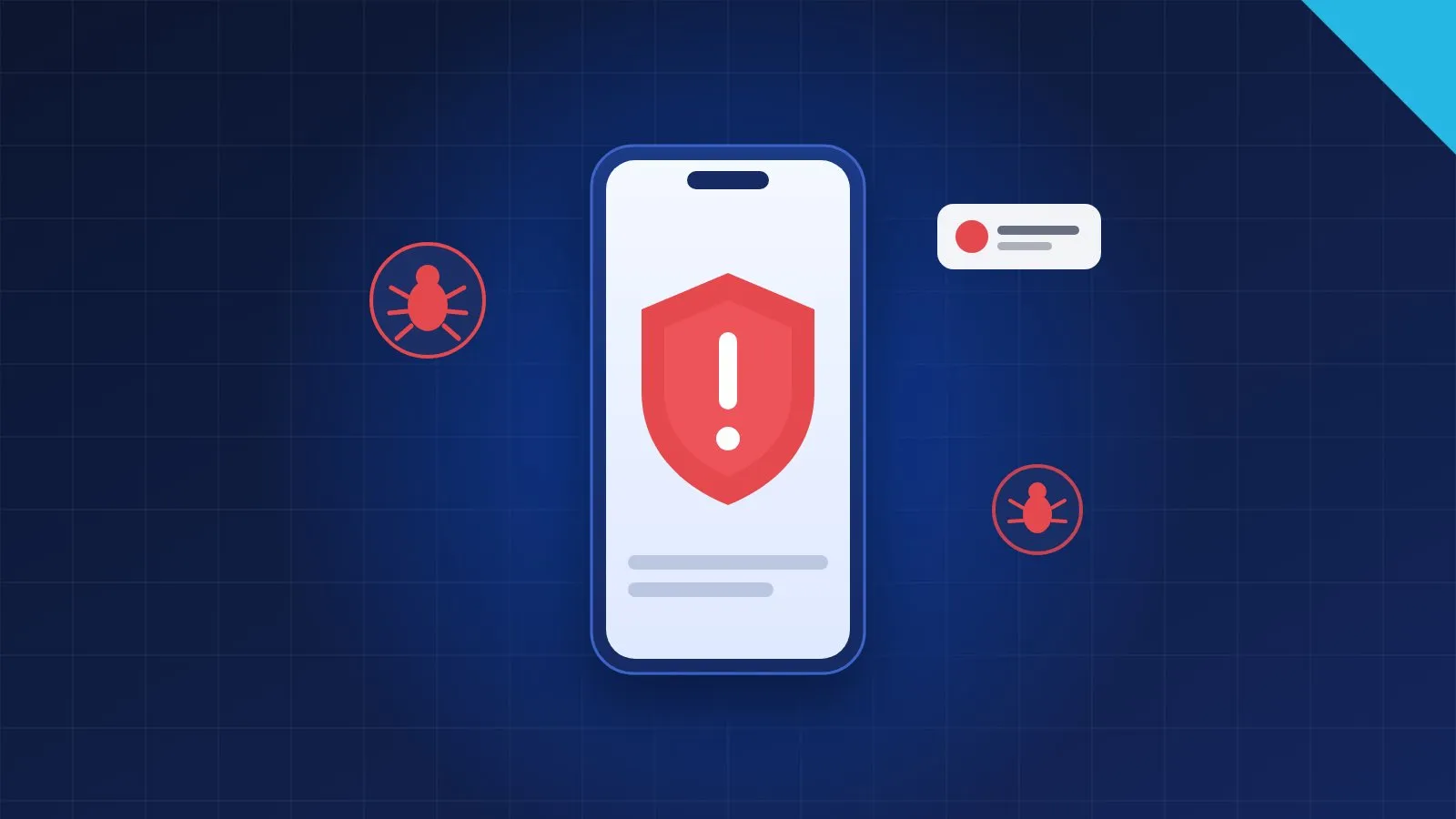
It’s rare for a phone to have a true virus, which is a type of malware that copies itself. Your phone can still pick up other malicious software, known as malware, which tries to access your information, damage your phone, or hold it for ransom. This guide shows how to tell real warning signs from harmless glitches, and how to clean your Android phone or iPhone.
Quick Check: Does Your Phone Have a Virus?
Work through these steps in order. They take about ten minutes and fix most problems.
- Look for the warning signs. Sudden battery drain, a phone that runs hot when idle, pop-up ads outside your browser, apps you don’t remember installing, unusual data use, or texts and charges you didn’t make.
- Check your installed apps. On Android, open Settings > Apps. On iPhone, swipe to the App Library. Delete anything you don’t recognize.
- Run a scan on Android. Open the Play Store, tap your profile picture, then Play Protect > Scan.
- Check for profiles on iPhone. Go to Settings > General > VPN & Device Management and remove any profile you didn’t add yourself.
- Update and clean up. Install the latest system update and clear your browser’s history and website data.
- Last resort: if the problems continue, back up your photos and contacts, then do a factory reset.
Is It Really a Virus?
Many symptoms people blame on viruses have a simpler cause. Battery drain is usually an app or an aging battery, and a browser pop-up shouting “your phone has a virus” is a scam ad, not a real scan. The signs that point most strongly to malware are things you never did: apps or profiles you didn’t add, and texts, calls or charges you didn’t make.
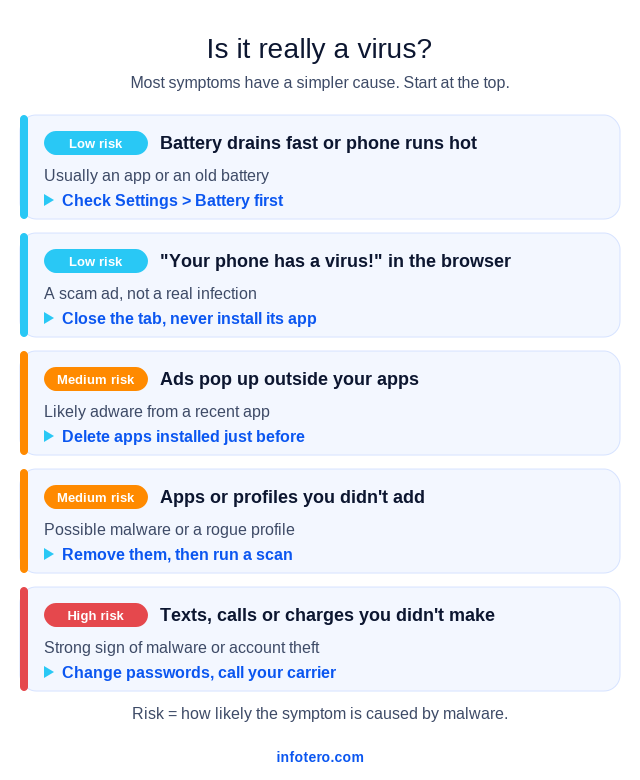
If battery drain is your only symptom, start with our guide on why your phone battery is draining fast.
Why Phone Viruses Are Uncommon (But Malware Isn’t)
Traditional viruses that copy themselves and spread are rare on phones. Both iOS and Android limit how much apps can interact with each other, which makes it hard for a virus to spread across the device the way it can on a computer.
Malware is a different story. A common route is a fake app, such as a game from an unofficial app store, that secretly installs something harmful.
iPhones are especially resistant because of Apple’s strict rules on how apps interact. Jailbreaking an iPhone to install outside apps removes those protections and makes it vulnerable. Android phones can install apps from other stores, so they are more exposed if you are not careful about downloads.
Common Signs of Malware on Your Phone
- Slow performance, fast battery drain or overheating when you are not doing much, caused by something running in the background.
- Pop-up ads in places they don’t belong, which can point to adware.
- Apps you don’t remember installing.
- A jump in data use you can’t explain, because malware may be sending or receiving data in the background.
- Apps crashing often, since malicious software is often badly made.
- Account problems, such as logins you didn’t make, fraud, or friends receiving spam messages from your accounts.
Criminals use malware to steal personal data, passwords, location and contacts, send text messages from your phone, or install spyware and ransomware.
Types of Malware to Watch For
- Adware floods your screen with ads and can make the phone slow or crash.
- Trojans pretend to be normal apps, then steal passwords or banking details once installed.
- Spyware quietly watches your messages, browsing, location, photos and videos. A keylogger is spyware that records everything you type.
- Stalkerware is often disguised as security software but is used to track and monitor a person.
- Ransomware locks you out of your phone and demands money to unlock it.
- Rootkits on Android give attackers hidden control over the device.
How to Remove Malware From an Android Phone
- Uninstall recent apps. If problems started after you installed something, remove the newest apps one by one until the problem stops.
- Run Play Protect. It is on by default and checks Play Store apps plus apps from other sources. Open Play Store > profile picture > Play Protect > Scan.
- Clear your browser data. Go to Settings > Apps, choose your browser, tap Storage, then Clear cache. This removes website data that can keep redirecting you to scam pages.
- Empty your Downloads folder, which may hold an infected file.
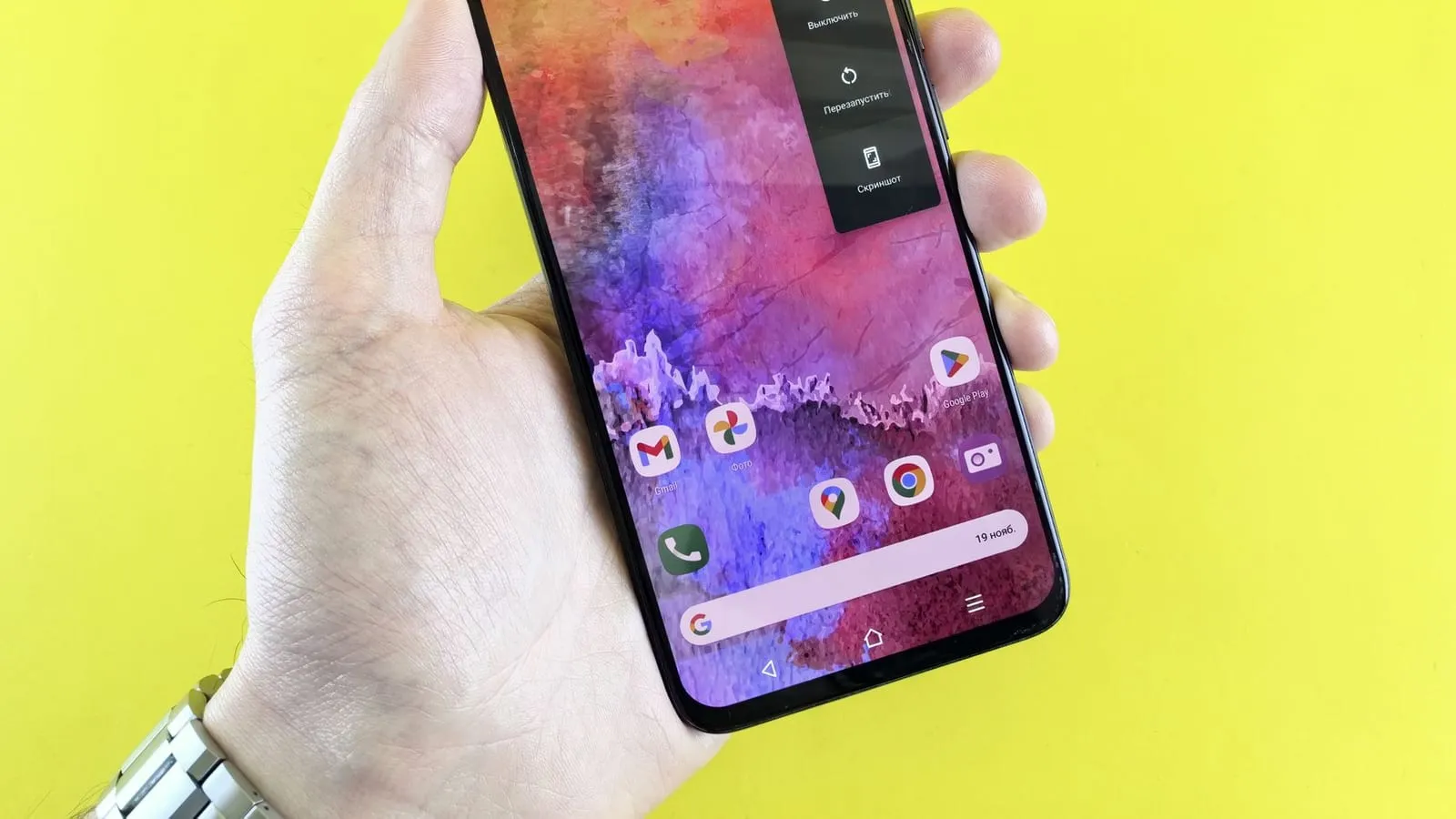
- Use safe mode if an app won’t go away. Press and hold the Power button, then tap and hold Power off until you see the option to restart in safe mode. Safe mode turns off third-party apps. If the problem stops, one of them is the cause, and you can delete suspicious apps from there.
- Remove admin rights if needed. Some malware gives itself device administrator rights so you can’t uninstall it normally. Search Settings for “device admin apps,” turn off access for the app, then uninstall it.
- Factory reset as a last resort. If safe mode doesn’t help, the malware may have reached deeper parts of the system, and a reset may be needed.
How to Clean Up an iPhone
- Close scam pop-ups. If Safari shows a virus warning, close the tab. Don’t call numbers or install apps it suggests.
- Clear Safari data. Go to Settings > Safari > Clear History and Website Data.
- Remove unknown profiles. Go to Settings > General > VPN & Device Management and delete anything you didn’t add.
- Delete apps you don’t recognize from the App Library.
- Update iOS in Settings > General > Software Update.
- Factory reset only if strange behavior continues after all of this.
What to Do After Removing Malware
Change the passwords for your most important accounts first, especially email and banking, because malware can capture login details. On Android, change your Google password too. A password manager makes updating many passwords much faster.
Before any factory reset, back up your photos and contacts so you don’t lose them. After cleaning up, keep your phone updated and only install apps from the official app store.
Related reading on Infotero: How to Stop Pop-Up Ads on Your Phone, How to Spot Fake Shopping Websites and Black Friday Scams and How to Create a Strong Password You Can Remember.
Frequently asked questions
How do I check my Android phone for malware?
Open the Play Store, tap your profile picture, then tap Play Protect and Scan. Also review your app list in Settings and remove any app you don't recognize.
Can an iPhone get a virus?
True viruses on iPhones are rare because apps run in a closed system. The bigger risks are fake pop-ups, scam links and unknown configuration profiles, which you can remove in Settings under VPN & Device Management. Jailbreaking an iPhone removes these protections.
Is the "your phone has a virus" pop-up real?
Almost never. These warnings are scam ads shown in a web browser. Close the tab, do not call any number shown, and never install an app the pop-up recommends.
What is the difference between a virus and malware on a phone?
A virus is a type of malware that copies itself and spreads. On phones, most harmful software is other malware, such as adware, spyware or ransomware, rather than self-copying viruses.
Does Google Play Protect scan for viruses?
Yes, Google Play Protect is turned on by default on Android phones. It checks apps from the Play Store and also scans for harmful apps from other sources.
Sources
Facts in this article were checked against these sources. Spotted an error? Report a correction.
- 1
- 2
- 36 Signs an Android Phone Has a Virus, and 5 Ways to Remove Itbusinessinsider.com
- 4How to remove a virus from Android | Android malware protectionmalwarebytes.com
- 5