Why Is My Phone On SOS? Understanding and Fixing SOS Mode
SOS on your phone means it has lost your carrier's network but can still make emergency calls. Here's why it happens and how to get your signal back.

The short answer
When your phone shows "SOS" or "SOS only," it has lost its regular cellular network but can still make emergency calls through other available networks. Toggling Airplane Mode, restarting and checking your SIM fixes most cases.
Key takeaways
- "SOS" means your phone has lost its regular cellular connection but can still make emergency calls.
- SOS is different from "No Service" and "Searching," and each one points to a slightly different fix.
- Weak coverage, a carrier outage, a SIM problem or an account issue are the usual causes.
- Toggling Airplane Mode and restarting fix most cases; your carrier can check outages and account problems.
- Emergency SOS is a separate feature that lets you call for help and alert your emergency contacts.
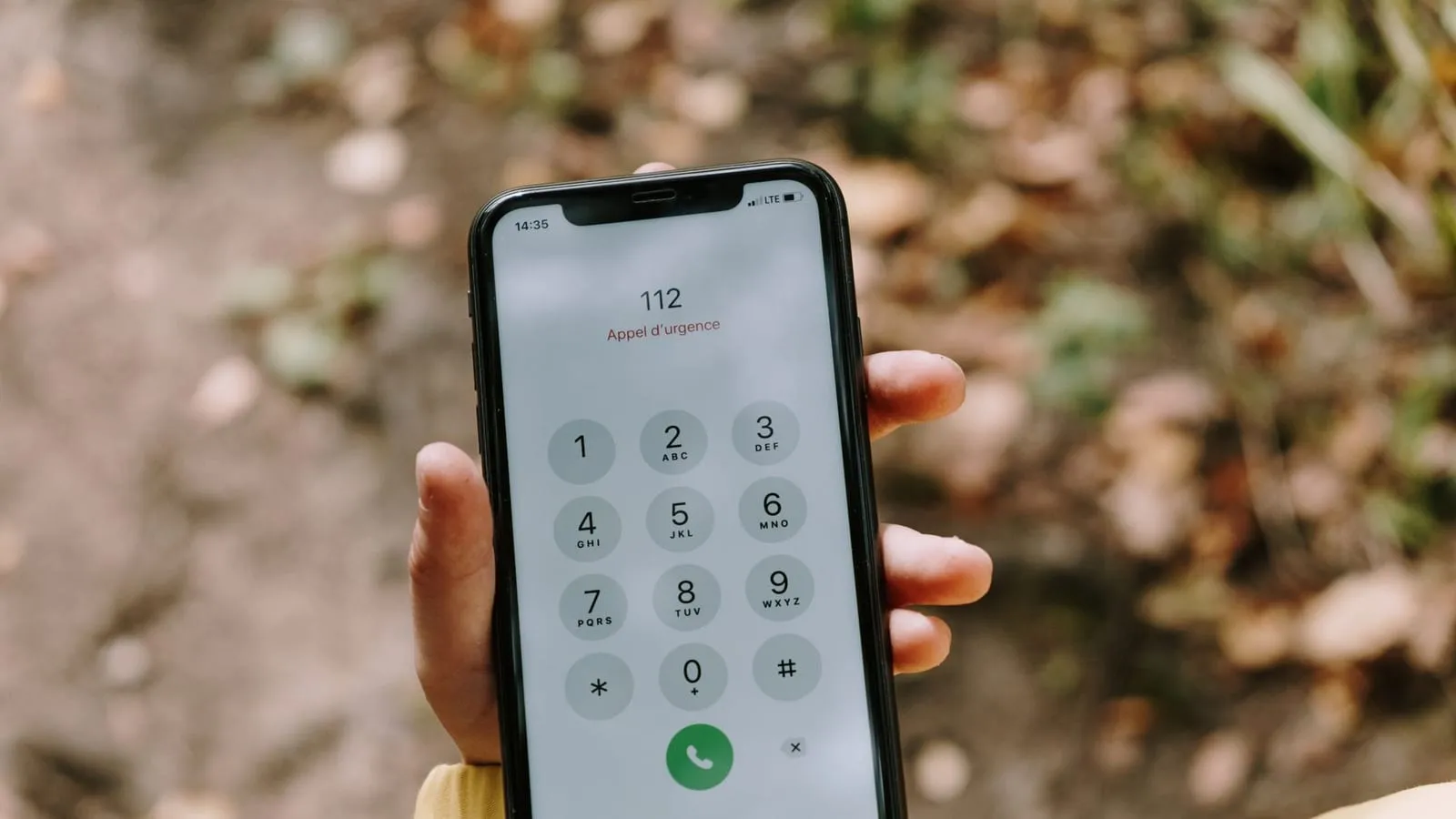
If your phone displays “SOS” or “SOS only” in its status bar, it has lost its connection to your usual cellular network. You cannot make regular calls or send texts, but the phone can still call emergency services using other carriers’ networks. In most cases, a quick Airplane Mode toggle or restart brings your signal back.
Quick Fix: How to Get Your Phone Off SOS
Try these steps in order. Most phones reconnect after step 1 or 2.
- Toggle Airplane Mode. Turn it on, wait 15 seconds, then turn it off to force a fresh search for your network.
- Restart your phone.
- Move to a better spot. SOS often appears in basements, rural areas and large buildings. Step outside or near a window.
- Check your SIM or eSIM. Make sure your line is turned on in Settings > Cellular (iPhone) or Settings > Network & internet (Android). For a physical SIM, remove it and put it back in.
- Install updates. Update your phone’s software, and on iPhone accept any carrier settings update.
- Reset network settings if nothing else works. This removes saved Wi-Fi passwords, so have them ready.
- Call your carrier from another phone to check for an outage or a problem with your account.
SOS vs No Service vs Searching
These three messages look similar, but they mean different things:
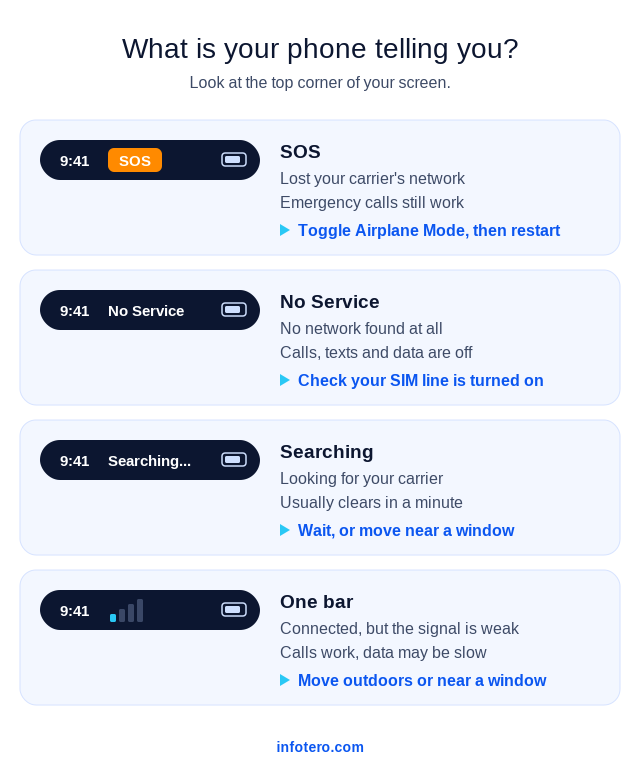
- SOS means your phone lost your carrier’s network but can still make emergency calls through another network. This works in Australia, Canada and the United States.
- No Service means your phone cannot find a network to use.
- Searching means your phone is still trying to connect, which often clears by itself after a minute.
On many Android phones, the same situation shows up as “Emergency calls only” instead of SOS. A weak signal is different again: with one bar, most things still work, just slowly. SOS means there is no connection for standard calls or texts at all.
Common Reasons for SOS Mode
SOS is often temporary, caused by a settings glitch or a wider network outage in your area.
- No coverage or an outage. You may be outside your carrier’s coverage, or the carrier may have a problem in your area. Sometimes a phone stays stuck in SOS even after you move back into an area with service.
- A SIM problem. A damaged SIM, one that does not sit properly, or one moved from another phone can cause SOS. Your carrier can replace it.
- An account or device issue. An unpaid bill, a suspended line or a blocked device can all cut your service. In some countries, phones bought abroad must have their IMEI number registered before they can connect.
Only your carrier can see your account details, so they are the best people to check whether your line is active, whether there is an outage, and whether your area has coverage.
Detailed Fixes for iPhone and Android
If the quick checklist did not work, go through these in more detail.
On iPhone:
- Update carrier settings. Connect to Wi-Fi, go to Settings > General > About, and install any carrier update that pops up. A new SIM card also needs the new carrier’s settings.
- Check both lines on Dual SIM. Go to Settings > Cellular and make sure each line is turned on. If a line is missing, ask your carrier to set up the eSIM again.
- Turn on Data Roaming when abroad. Go to Settings > Cellular > Cellular Data Options and switch on Data Roaming.
- Run diagnostics. On iOS 18 or later, the Apple Support app can check your phone for connection problems.
On Android:
- Check the SIM. Go to Settings > Network & internet > SIMs and make sure your SIM is turned on.
- Let the phone pick the network. In the same menu, open your SIM and turn on Automatically select network.
- Turn on roaming when abroad. Switch on Roaming in the same SIM settings.
- Reset mobile network settings. Search Settings for “Reset” and choose the option to reset Wi-Fi, mobile and Bluetooth.
Menu names vary a little between Samsung, Pixel and other brands, so use the search bar in Settings if you cannot find an option. If none of this works and your carrier confirms your account and network are fine, your phone may have a hardware fault that needs repair.
How Emergency SOS Features Work
Emergency SOS is a separate feature built into most smartphones. It lets you call emergency services quickly and alert the people you choose as emergency contacts. Some phones can also share your location or record video or audio.
On iPhones
On iPhone 8 or newer, press and hold the side button and one of the volume buttons, or press the side button five times quickly. On iPhone 7 and older, press the side or top button five times quickly to bring up the Emergency Call slider. After the call, your iPhone can text your emergency contacts unless you cancel it. Set up those contacts in the Health app under Medical ID.
On Android Phones
On Android, first save at least one emergency contact. On Android 12 and 13, go to Settings > Safety & emergency > Emergency contacts.
Samsung phones offer Send SOS messages under Settings > Safety and emergency, where you choose how many side button presses trigger it. The messages can include pictures and a five-second audio recording, and the phone can call someone automatically afterward. On Google Pixel phones, Emergency SOS lives in the Safety app and starts when you press the power button five times. It can play an alarm, call emergency services, share your location and record video.
Related reading on Infotero: Why Your iPhone Hotspot Is Not Working and How to Fix It and Why Is My iPhone Not Ringing When Someone Calls?.
Frequently asked questions
What does SOS mean on my phone?
It means your phone cannot connect to your carrier's network, but it can still place emergency calls through any network that is available nearby.
Can I make normal calls when my phone shows SOS?
No. While SOS is showing you can only call emergency numbers. Normal calls, texts and mobile data return once your phone reconnects to your carrier.
What is the difference between SOS and No Service?
SOS means your phone lost your carrier but can still reach emergency services through another network. No Service means it cannot find a network to use at all.
What should I do if my phone is stuck in SOS mode?
Turn Airplane Mode on for at least 15 seconds and then off, restart your phone, and check for software and carrier settings updates. If SOS stays, contact your carrier.
Does SOS mode mean my phone is broken?
Not necessarily. SOS is usually caused by weak coverage, a network outage or a settings glitch. Your carrier can help check whether there is a hardware problem.
How do I set up emergency contacts on my phone?
On an iPhone, add them in the Health app under Medical ID. On Android, go to Settings > Safety & emergency > Emergency contacts after saving at least one contact.
Sources
Facts in this article were checked against these sources. Spotted an error? Report a correction.
- 1
- 2
- 3
- 4