Why Is My iPhone Not Ringing When Someone Calls?
If your iPhone isn't ringing when someone calls, it could be due to silent mode, Do Not Disturb, Focus modes, or blocked numbers.

The short answer
Your iPhone might not be ringing because it's in silent mode, Do Not Disturb, or a Focus mode. Other common reasons include blocked numbers, silent ringtones, or issues with connected Bluetooth devices or CarPlay. Checking these settings can help restore your phone's ringing function.
Key takeaways
- Check if Do Not Disturb or any Focus mode is active, as these send calls to voicemail.
- Ensure the Ring/Silent switch on the side of your iPhone is not set to silent.
- Verify that the caller's number isn't blocked and that 'Silence Unknown Callers' is off.
- Disconnect Bluetooth devices or CarPlay, as they can redirect ringtones.
- Restart your iPhone and check for software updates or speaker issues.
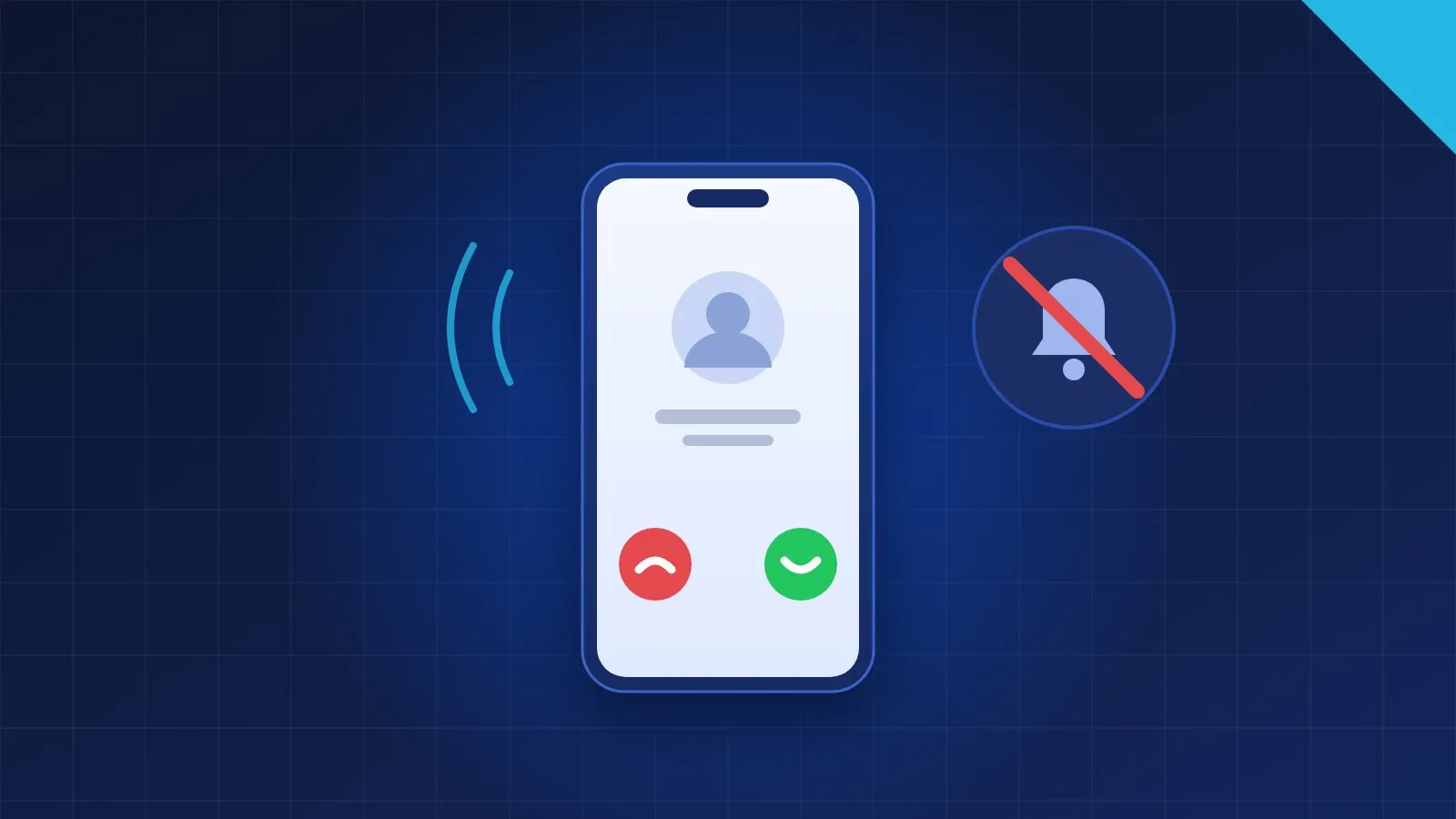
If your iPhone is not ringing when someone calls, several common settings or issues could be the cause. Often, the problem stems from silent mode, Do Not Disturb, or a Focus mode being active, which directs calls straight to voicemail. Other reasons can include blocked numbers, low ringer volume, or the phone being connected to a Bluetooth device or CarPlay. Checking these areas can help you quickly identify and fix why your iPhone isn’t ringing.
Check Silent Mode and Focus Settings
Your iPhone might not ring if it is in silent mode or if a Focus setting is active. Focus modes, such as Do Not Disturb, can send incoming calls directly to voicemail without ringing. This applies to iPhones running iOS 15 or later.
You can quickly check if a Focus mode is on by swiping down from the top-right corner of your iPhone screen. This opens the Control Center. In the Control Center, look for a rectangle next to the brightness controls. If a Focus mode like “Do Not Disturb,” “Driving,” or “Sleep” is active, it will be displayed there.
Disabling it should resolve the issue.
Your iPhone also has a physical Ring/Silent switch on its left side, above the volume controls. If this switch is flipped down and shows a red or orange band, your phone is set to silent. Flip the switch up to enable the ringer.
Review Call Blocking and Ringer Volume
You should check your iPhone’s settings to make sure you have not blocked the caller. You also need to confirm that your ringer volume is turned up.
First, check if you have accidentally blocked the contact. You can see blocked numbers in the Settings app under “Phone” and then “Blocked Contacts”. To unblock a number, swipe left on it in the list and tap “Unblock”.
Next, confirm your ringer volume is high enough. You can adjust the ringer volume in the Settings app under “Sound & Haptics” using the “Ringtone and Alert Volume” slider. Make sure the volume is not set too low or muted.
Another feature that can prevent calls from ringing is “Silence Unknown Callers.” This setting sends calls from numbers not in your contacts directly to voicemail without ringing. To disable it, go to Settings > Phone > Silence Unknown Callers and turn the feature off. If this feature is on, a caller must be in your contacts or recent calls, or have shared their number in Mail or a message, for their call to ring. Adding a number to your contacts ensures the phone rings when that person calls, even if “Silence Unknown Callers” is enabled.
The ringtone might also have a silent section or be too quiet to hear. You can change a contact’s ringtone through the Phone app by going to the Contacts tab, selecting the contact, tapping ‘Edit’, and then ‘Ringtone’.
If you are still having issues with your iPhone, you may need to free up storage on iPhone.
Disconnect External Audio Devices
Your iPhone might not ring because it is sending the audio to another device. This often happens if you have headphones, Bluetooth devices, or a car’s infotainment system connected to your phone. The iPhone prioritizes these external connections for audio output.
For example, if your iPhone is connected to a Bluetooth speaker or your car via CarPlay, the incoming call sound might be directed there instead of playing through your phone’s internal speaker. This can make it seem like your phone is not ringing at all. An iPhone can also get “stuck” in headphones mode, sending the ringtone to an unconnected device like earbuds or a Bluetooth device.
To fix this, disconnect any external audio devices you have. Unplug wired headphones. To disconnect Bluetooth devices, go to Settings > Bluetooth, tap the info (i) icon next to the device, and select ‘Disconnect’, or turn off Bluetooth entirely. If you are using CarPlay, the ring will be sent to the car’s speakers instead of the phone. To make the iPhone ring while using CarPlay, disconnect the phone from the car’s USB port. Your iPhone might mistakenly think it’s still connected to a car even after being unplugged from CarPlay. Once these devices are disconnected, your iPhone should play the ringtone through its built-in speaker for incoming calls.
Disable Call Forwarding and Calls on Other Devices
Sometimes, your calls might be going to another device or being forwarded. You can check your iPhone’s settings to see if this is happening.
First, look at your call forwarding settings. On your iPhone, go to Settings > Phone > Call Forwarding. Make sure this setting is turned off. If it is on, incoming calls will be sent to another number instead of ringing on your iPhone.
Next, check if other Apple devices are set to receive your calls. This can happen if you have “Calls on Other Devices” enabled. Setting up a Mac to receive phone calls can sometimes prevent an iPhone from ringing. On your iPhone, go to Settings > Phone > Calls on Other Devices. Here, you will see a list of devices that can receive calls meant for your iPhone. If you see devices listed that you do not want to ring, you can toggle them off individually. You can also turn off the main “Allow Calls on Other Devices” switch if you only want your iPhone to ring. This is a common reason why your iPhone might not ring, especially if you have an iPad or Mac connected to the same Apple ID.
Troubleshoot Software and Hardware Issues
Sometimes, a simple restart can fix temporary software glitches. Restarting an iPhone can help resolve ringing issues. To restart an iPhone, press and hold the Side button and a Volume button until the power slider appears, then drag the slider to turn it off. Press and hold the Side button to power it back on. This can resolve minor issues that prevent calls from ringing. If your phone is generally slow, you might want to read our guide on Why Is My Phone So Slow? Common Reasons and How to Fix Them.
You should also check for any available iOS updates. Outdated software can prevent an iPhone from receiving calls. Software updates often include bug fixes that can address problems with call notifications. To do this, go to Settings > General > Software Update on your iPhone. If an update is available, install it. Some software updates may require a Wi-Fi connection.
If these steps do not help, consider if there’s a hardware problem. An iPhone’s speaker issues, such as being blocked by debris or damaged, can prevent it from ringing. If an iPhone still doesn’t ring after troubleshooting, it might have a hardware issue. On iPhone models running iOS 18 and later, the Apple Support app can run additional diagnostics.
Another option is to reset network settings, which can help if an iPhone isn’t ringing. To do this, go to Settings > General > Transfer or Reset iPhone > Reset > Reset Network Settings. Be aware that resetting network settings erases saved Wi-Fi passwords, preferred networks, and VPN/APN settings.
Finally, check if Airplane mode is active. Airplane mode turns off cellular service entirely, preventing calls from coming through. You can turn Airplane Mode on and off in the Settings app, waiting five seconds between toggles.
For more serious software problems, like an iPhone that won’t start, you might find solutions in articles like What to Do If Your iPhone Is Stuck on the Apple Logo. If your phone is stuck in SOS mode, you can find help in our guide Why Is My Phone On SOS? Understanding and Fixing SOS Mode.
Related reading on Infotero: Why are my iMessages sending as green text messages?.
Frequently asked questions
How do I check if Do Not Disturb or Focus mode is on?
Swipe down from the top-right of your iPhone screen to open Control Center. If 'Do Not Disturb', 'Driving', or 'Sleep' is displayed next to the brightness controls, a Focus mode is active. Tap the Focus button to disable it.
What does 'Silence Unknown Callers' do?
'Silence Unknown Callers' sends calls from numbers not in your contacts directly to voicemail without ringing. To disable it, go to Settings > Phone > Silence Unknown Callers and turn the feature off.
Can a custom ringtone stop my iPhone from ringing?
Yes, a custom ringtone assigned to a specific contact might not be working, or it could have a silent section, causing your iPhone not to ring for that person. You can change a contact's ringtone in the Phone app.
Why would my iPhone ring through my car speakers?
If your iPhone is connected to CarPlay, the ring will be sent to your car's speakers instead of the phone. To make the iPhone ring while using CarPlay, disconnect the phone from the car's USB port.
What should I do if my iPhone speaker is broken?
If your iPhone still doesn't ring after checking all software settings, it might have a hardware issue with the speaker, possibly due to debris or damage. The Apple Support app can run diagnostics on newer models.
Sources
Facts in this article were checked against these sources. Spotted an error? Report a correction.
- 1iPhone Not Ringing? 12 Ways to Fix Itbusinessinsider.com
- 2iPhone Not Ringing? 12 Ways to Fix Itbusinessinsider.com
- 3
- 4